Here’s How to Reset a Samsung TV — From a Quick Restart to Full Factory Reset
Last updated: September 2026
🕒 4 min read
Disclosure: This article does not contain affiliate or sponsored links. SignalVetted may still reference specific products or brands for informational purposes only.
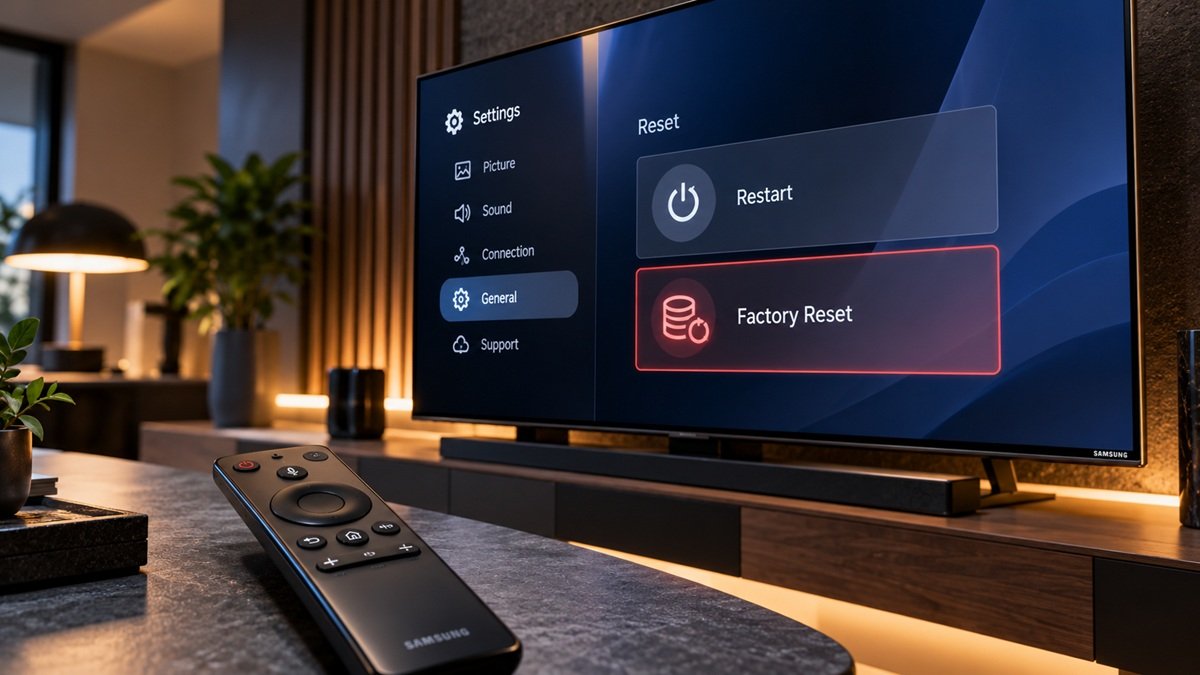
Apps freezing, a picture that suddenly looks wrong, a sound setting you can’t find your way back from: when a Samsung TV misbehaves, “reset it” is the usual advice. The catch is that Samsung offers several different resets, and they range from a restart that erases no data to resets that delete Smart Hub apps and account information. This guide explains how to reset a Samsung TV one level at a time, what each option clears, and where to find it, based on Samsung’s own support pages.
Table of Contents
How to Reset a Samsung TV: Pick the Right Reset First
Here is what each option does, according to Samsung. The rows run from the lightest touch to the heaviest.
| Reset | What it does | What you lose | Where it lives |
|---|---|---|---|
| Restart (power cycle) | Turns the TV fully off and back on | No data erased, per Samsung | Power button and wall plug |
| Reset Picture / Reset Sound | Returns picture or sound settings to default | Your custom picture or sound adjustments | Picture or Sound > Expert Settings |
| Reset Smart Hub | Returns Smart Hub settings to default | Smart Hub settings, plus information related to Samsung and linked service accounts, Smart Hub service agreements and Smart Hub apps | Support > Device Care > Self Diagnosis |
| Factory reset | Restores all TV settings to factory defaults | Every setting except network settings; apps need signing in again | General & Privacy > Reset |
Source: Samsung US and Samsung UK support pages, checked September 2026.
Our suggestion, not Samsung’s: start at the top and only move down a row if the lighter option didn’t help. There’s little point wiping your app log-ins when the issue was a sound setting.
Before You Start
Samsung says menus may vary depending on the model and software version, so the paths below may not match your TV exactly. Samsung’s advice for that case is to open Settings, choose Support and then Self Diagnosis, or to download your TV’s user manual from Samsung’s Download Center.
Two more things to have ready for a factory reset. It asks for your TV’s PIN, and Samsung gives 0000 as the default. Also write down the log-in details you use for your apps, because each app will need signing in again afterwards.
If Netflix is the only account you want off the TV, you don’t need a reset: our guide to signing out of Netflix on a TV covers the in-app and account-page methods.
Restart Your Samsung TV (Power Cycle)
A restart is the lightest option, and it comes first in our suggested order. Samsung UK’s restart guide describes it this way: switch the TV off, pull the plug from the wall, wait about a minute, then plug it back in and press the power button.
Samsung notes that this method does not erase data from your TV.
If your Samsung TV keeps switching itself off, our guide to why a Samsung TV keeps turning off covers what Samsung’s support pages say.
If the TV is simply slow to turn on or to open apps, see our guide to why a Samsung TV is slow.
If the TV doesn’t turn on at all, see our guide to why a Samsung TV won’t turn on.
Reset Picture or Sound Settings Only
If the problem is limited to how the TV looks or sounds, you can reset just that area. According to Samsung’s US reset guide, the paths are:
- Picture: Settings > Picture > Expert Settings > Reset Picture
- Sound: Settings > Sound > Expert Settings > Reset Sound
Samsung lists these separately from the Smart Hub and factory resets, and doesn’t describe them as deleting apps or accounts.
Reset Smart Hub
Resetting Smart Hub is a bigger step than a picture or sound reset, so read this before you do it: Samsung says a Smart Hub reset reverts all Smart Hub settings to factory defaults and deletes all information related to Samsung accounts, linked service accounts, Smart Hub service agreements and Smart Hub apps.
The path Samsung gives is Settings > Support > Device Care > Self Diagnosis > Reset Smart Hub.
Factory Reset a Samsung TV
A factory reset is the heaviest option. Samsung’s US reset guide describes it as restoring all TV settings to their factory defaults, with one exception: network settings are kept. After the reset, every app will need to be signed into again.
To run it, open Settings, select General & Privacy, choose Reset, enter your PIN (0000 by default) and confirm with Reset. If your menu differs, see the fallback under Before You Start.
If you’re resetting because you’re getting rid of an old TV, our separate guide covers what to do with it next.
Check First With Self Diagnosis
Samsung’s Self Diagnosis menu includes a set of built-in tests: a Network Status test, a Smart Hub connection test, a Picture Test, a Sound Test and a Signal Information check for your broadcast signal. If you aren’t sure a reset is needed, our suggestion is to run the test that matches your problem first.
For the Sound Test and what to try next when the TV’s sound is very low or missing, see our guide to fixing Samsung TV sound.
If the problem is the remote rather than the TV, see our guide to Samsung TV remote control problems.
Frequently Asked Questions
Does a factory reset on a Samsung TV delete my Wi-Fi settings?
According to Samsung’s US guide, no. A factory reset restores all TV settings to their defaults except the network settings, so those are kept. You will need to sign back into your apps.
What is the default PIN on a Samsung TV?
Samsung lists 0000 as the default PIN. If you’ve changed it and forgotten the new one, note that Samsung’s reset guide doesn’t explain how to recover it.
Is unplugging a Samsung TV the same as resetting it?
Not quite. Unplugging it for about a minute is a restart that, per Samsung, doesn’t erase data. The menu resets change settings: a Smart Hub reset deletes account-related information and Smart Hub apps, and after a factory reset your apps need signing into again.

Nridi
Editor, SignalVetted
This article does not report independent product testing.
✅ Based on Samsung’s US reset guide (updated May 2026) and Samsung UK’s restart guidance.