Samsung TV Remote Control Problems
Last updated: October 2026
🕒 4 min read
Disclosure: This article does not contain affiliate or sponsored links. SignalVetted may still reference specific products or brands for informational purposes only.
A Samsung remote that does nothing, or one that seems to press buttons by itself, is hard to pin down. This guide to Samsung TV remote control problems follows Samsung’s US support page on remote problems, which sorts its fixes by symptom. Samsung says that if a remote seems to press buttons by itself, the buttons may be dirty. This guide covers TVs only, follows that one page, and does not say how to tell which type of remote you have.
Table of Contents
Samsung TV Remote Control Problems: If the TV Does Not Respond
For a TV that does not respond, Samsung’s US support page gives a short run of steps. They are condensed here in the order Samsung gives them.
Battery remotes
If your remote uses batteries, Samsung says to remove the batteries and hold the Power button for eight seconds to reset the remote. Then reinsert the batteries and try the remote again.
Solar remotes
Samsung says that if you have a 2021 or newer TV model with a solar remote, you can reset the remote by pressing and holding Return and Enter, the center of the navigation pad, for 10 seconds. After this reset, you need to pair the remote to the TV again, so skip ahead to the Smart Remote pairing steps below.
Check whether the remote sends a signal
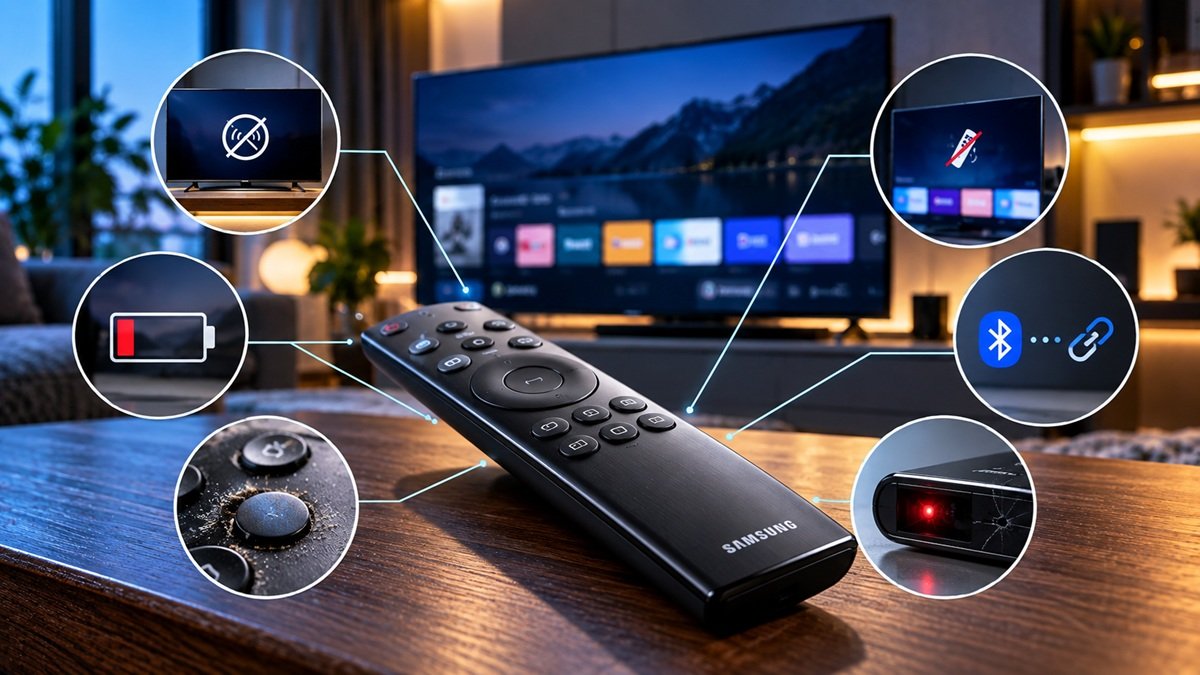
Samsung’s next step is a camera check. Point the remote at a digital camera, or at the camera on a phone or tablet, then press and hold the Power button on the remote while you watch the camera’s screen. If the remote is sending an IR signal, you see a colored light from the remote. What Samsung says to do next depends on what you see:
- If you do not see the light, replace the batteries with fresh ones and try again. If you still do not see the light, Samsung says to replace the remote.
- If your remote is not a Smart Remote and you see the light, turn on the TV using the controls on the TV directly. Then try the remote again, pointing it directly at the Samsung logo. If the remote still does not work, Samsung says to visit its Support Center to request service.
Smart Remote pairing
If you have a Smart Remote, Samsung says to try pairing it with the TV:
- Press and hold Return and the button diagonally up and to the right of Return. Samsung says this is usually the button with 4 colored dots, but it can vary depending on the remote. This resets the Smart Remote.
- Stand within 1 foot of the TV and press and hold Return and Play/Pause at the same time for at least 5 seconds, or until a message appears on the TV saying the remote is connected.
If the remote will not pair, Samsung says to unplug the TV for 30 seconds and plug it back in. Then stand within 1 foot of the TV and press and hold Return and Play/Pause again for at least 5 seconds, or until the message appears. If the remote still does not pair, Samsung says to contact Samsung.
If you would rather control the TV from your phone, see our guide to using a phone as a TV remote.
If the TV Changes Source or Volume by Itself
For a TV that changes source or volume by itself, Samsung’s US support page starts with the remote and then moves to the TV. Here are its steps.
Check the remote. Look for any buttons that are stuck or not working properly. If your remote uses batteries, take them out. If your TV came with a solar remote, let it charge for a little while.
Unplug the TV. With the TV powered on, unplug it from the wall outlet. If the TV has a One Connect Box, unplug it as well. If what you want is a reset of the TV itself rather than these steps, see our guide on how to reset a Samsung TV.
Clean the touch controls. While the TV is unplugged, use a microfiber cloth to wipe the touch controls on the bezel of the TV.
Plug the TV back in. Use the touch controls on the bezel to turn the TV back on. If the issue still occurs, Samsung says to visit its Support Center to request service.
Try the remote again. If necessary, replace the batteries in the remote with new batteries and test it. If the behavior begins again, Samsung says there is a problem with the remote and it will need to be replaced.
If your Samsung TV is turning itself off instead, see our guide on why a Samsung TV keeps turning off.
If the Remote Stops Working After the SmartThings App (2022 B-Model TVs)
Samsung’s US support page has a separate section for 2022 B-model TVs. It says that registering devices in the SmartThings app disrupts the IR signal for the TV remote, so the remote does not respond properly. Samsung gives these steps as a workaround:
- Turn the TV off and back on using the Power button on the TV itself.
- Open the SmartThings TV app and select Settings in the top right corner of the screen.
- Select About SmartThings, then select SmartThings Guide.
- Select Do not receive new device notifications.
- Exit the SmartThings app.
Samsung says the remote should then work properly again and service is not required.
If an External Device Does Not Respond to the Samsung Remote
Samsung’s US support page also covers an external device that does not turn on when you press Power on the Samsung remote. It says to confirm that Universal Remote Setup was completed and that the current source on the TV matches the source the device is connected to. If that does not solve it, Samsung says the device may be sending a blank image signal, so the TV thinks the device is on and does not send the power-on signal. Samsung’s suggestion is to power cycle the device using its own remote or button, and to contact the device’s maker if needed.
Setting up channels from an antenna or cable box is a separate task; see our guide to scanning channels on a Samsung TV.
Frequently Asked Questions
How do you reset a Samsung TV remote?
Samsung gives a different reset for each remote type. For a battery remote, remove the batteries, hold Power for eight seconds, then reinsert them. For a solar remote on a 2021 or newer TV, hold Return and Enter for 10 seconds, then pair the remote again. For a Smart Remote, hold Return and the button diagonally up and to the right of it, then pair by holding Return and Play/Pause within 1 foot of the TV.
How do you check a Samsung remote with a phone camera?
Samsung says to point the remote at the camera, press and hold the Power button, and watch the camera’s screen. If the remote is sending an IR signal, you see a colored light from it. If you do not, Samsung says to try fresh batteries, and to replace the remote if there is still no light.
What does Samsung suggest when the TV changes source or volume by itself?
Samsung says to check the remote for stuck buttons, take out its batteries if it uses them (or let a solar remote charge), unplug the TV, wipe the touch controls on the bezel with a microfiber cloth, plug the TV back in, and test the remote again. If the issue still occurs, it says to request service.

Nridi
Editor, SignalVetted
This article does not report independent product testing.
✅ Based on Samsung’s US support page on remote problems.