How to Factory Reset an LG TV: What LG’s Guide Says
Last updated: October 2026
🕒 3 min read
Disclosure: This article does not contain affiliate or sponsored links. SignalVetted may still reference specific products or brands for informational purposes only.
How to factory reset an LG TV comes down to one menu option, and LG’s support page gives it a different name. In the page text we reviewed, LG calls it a reset to initial settings. This guide follows that page. It is LG’s guidance for LG TVs, not a rule for every brand.
It covers what LG says a reset is, what it erases, the menu path and the two options you’re offered. It doesn’t add steps of our own.
Table of Contents
How to Factory Reset an LG TV: What LG Says a Reset Is
According to LG’s US support page (the page shows the date 11/05/2025), a reset means restoring a product to its initial settings at the time of purchase. LG says that performing a reset can resolve issues such as a malfunctioning Magic Remote or errors related to TV software or apps.
What a Reset Erases
Read this before you start. LG warns that a reset erases all apps that were installed through purchase, along with personal settings and saved data.
The Menu Path for TVs Released 2021 to 2025
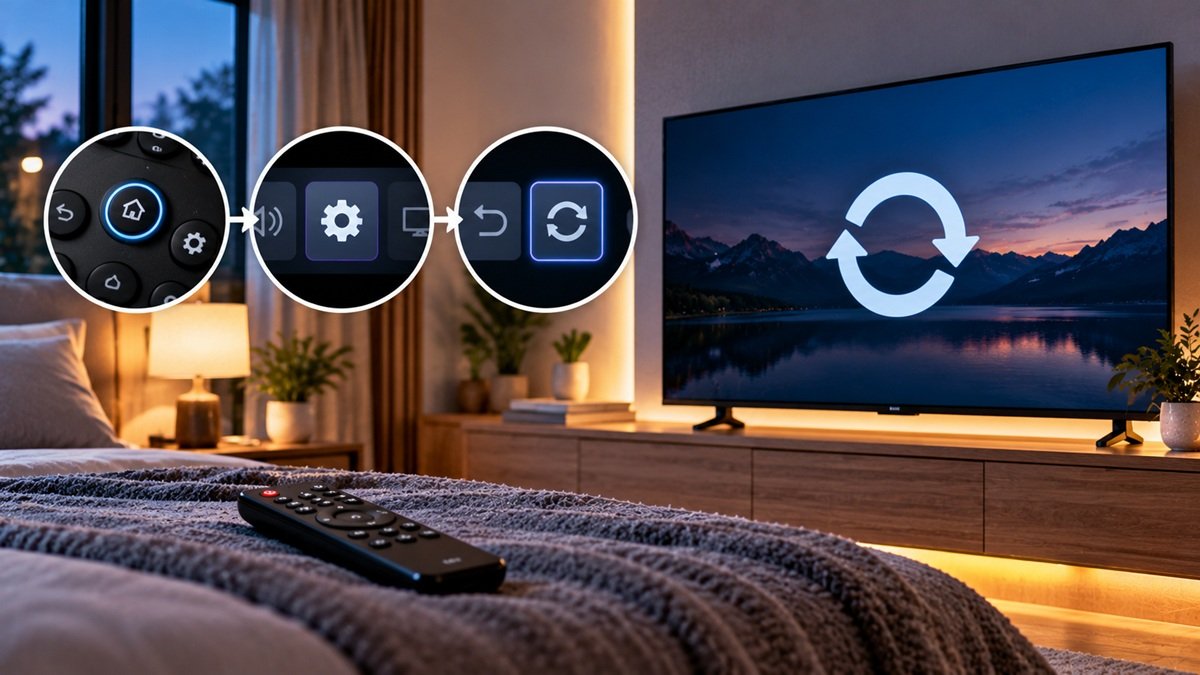
LG gives a different menu path depending on the TV’s release date and webOS version. For TVs released between 2021 and 2025 (webOS 6.0 to 25), it says to press the Settings button on the remote, then choose All Settings, General, System and Reset to Initial Settings.
LG lists other paths for 2020 TVs and for older ones, so use LG’s page if your TV is older. Our guide doesn’t copy them.
The Step-by-Step for webOS 24 and 25 TVs
LG also gives a step-by-step for webOS 24 and 25 TVs. You press the Settings button on the remote to open the quick menu, then use the remote’s pointer to select the All Settings icon and press the wheel (OK) button in the center of the remote to confirm. From there you open the General tab, then the System tab, and select Reset to Initial Settings.
The Two Options After You Select Reset to Initial Settings
LG says you are then prompted to pick an option:
- Reset All: resets all settings, including network settings.
- Reset all except network settings: resets all settings except the wired and wireless network settings.
After you choose, LG says the TV restarts and shows the initial screen. You then follow the on-screen prompts to set it up.
What This Page Doesn’t Cover
LG says its guide was created for all models, so the images or content may differ from your TV. In the page text we reviewed, LG gives no advice on backing up your data, signing out of accounts, or when to choose a reset over other fixes.
This guide is about LG TVs. For a Samsung TV, see our guide on how to reset a Samsung TV.
For a Hisense TV, see our guide on how to factory reset a Hisense TV.
Frequently Asked Questions
How to factory reset an LG TV?
LG calls it Reset to Initial Settings. For TVs released between 2021 and 2025, LG says to press the Settings button, then choose All Settings, General, System and Reset to Initial Settings. LG warns that this erases all apps installed through purchase, personal settings and saved data.
Will resetting an LG TV delete my apps?
LG calls it Reset to Initial Settings. For TVs released between 2021 and 2025, LG says to press the Settings button, then choose All Settings, General, System and Reset to Initial Settings. LG warns that this erases all apps installed through purchase, personal settings and saved data.
Does resetting an LG TV erase the network settings?
It depends on the option you pick. LG says Reset All resets all settings, including network settings. The option to reset all except network settings keeps the wired and wireless network settings.

Nridi
Editor, SignalVetted
This article does not report independent product testing.
✅ Based on LG USA Support’s “[LG TV] How to reset your TV” page (page shows 11/05/2025).