How to Scan Channels on a Samsung TV: Samsung’s Steps
Last updated: October 2026
🕒 3 min read
Disclosure: This article does not contain affiliate or sponsored links. SignalVetted may still reference specific products or brands for informational purposes only.
You’ve connected an antenna or a cable box and need to set up your channel list. Here is how to scan channels on a Samsung TV, following Samsung’s US support page on scanning for channels. The page lists seven steps, from making sure the antenna or cable box is installed and set up to selecting Close, and they appear below in Samsung’s order.
Table of Contents
What the Channel Scan Does
According to Samsung’s US support page on scanning for channels, the TV has a tuner that can scan for local channels and program them into the channel list automatically.
The page says you have to connect an antenna or cable and then scan for local stations. It also says an antenna will help the TV find even more channels and improve the quality of the signal.
How to Scan Channels on a Samsung TV, Step by Step
Samsung’s page includes one note: the Broadcasting menu will be greyed out if you do not change the source to TV. Its seven steps are:
- Make sure an antenna or a cable box is already installed and set up. A coax cable may need to be attached if the antenna or box doesn’t come with one.
- Connect the other end of the coax cable to the ANT IN port on the back of the TV, or One Connect Box if you have one.
- Change the source on the TV to TV.
- On the TV source, use the directional pad or the arrow buttons on the remote to select Settings (All Settings).
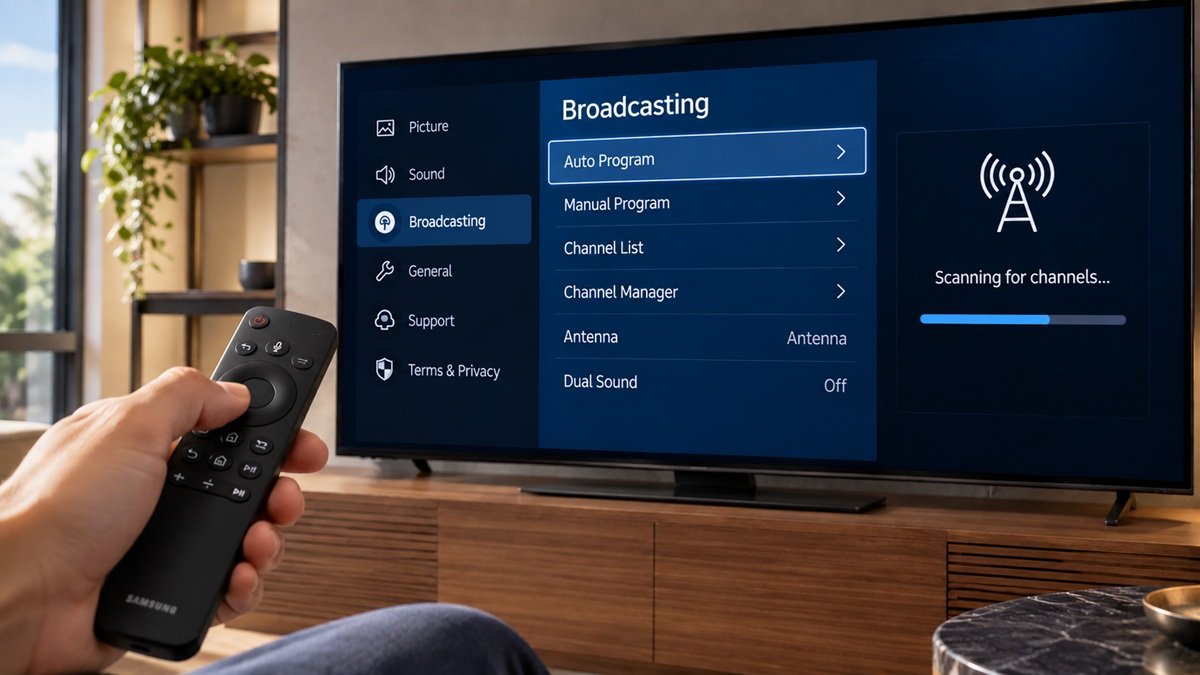
- Select Broadcasting, then Auto Program.
- Select Start to begin, then select Air, Cable, or Both. Samsung’s definitions of Air and Cable follow below.
- The TV begins to scan for channels. When it’s done, select Close to finish.
If the remote doesn’t respond, see our Samsung TV remote control problems guide.
Air, Cable or Both: What the Page Says
At step 6, the page says Air is for an antenna only, and Cable is for a cable box only. It lists Both as the third choice and gives no explanation of it.
What Samsung’s Page Doesn’t Cover
The steps themselves don’t say which Samsung TV models or years they apply to, so we can’t confirm that every menu name matches every TV. The page also doesn’t say what to do if channels are missing after a scan, or how long a scan takes. If channels are missing after a scan, our guide on how to boost TV antenna signal covers what the FCC says about improving antenna reception.
Frequently Asked Questions
How do I scan channels on a Samsung TV?
According to Samsung’s page, connect an antenna or cable box to the ANT IN port on the back of the TV (or the One Connect Box) with a coax cable if needed, change the source to TV, select Settings (All Settings), select Broadcasting, then Auto Program, select Start, choose Air, Cable, or Both, and select Close when the scan is done.
Why is the Broadcasting menu greyed out?
Samsung’s page says the Broadcasting menu will be greyed out if you do not change the source to TV. The page gives no other reason.
What is the difference between Air and Cable?
Samsung’s page says Air is for an antenna only, and Cable is for a cable box only. Both is listed as a third choice, without explanation.

Nridi
Editor, SignalVetted
This article does not report independent product testing.
✅ Based on Samsung’s US support page on scanning for channels.