Using a TV as a Computer Monitor: Things to Check Before You Try
Last updated: September 2026
🕒 6 min read
Disclosure: This article does not contain affiliate or sponsored links. SignalVetted may still reference specific products or brands for informational purposes only.
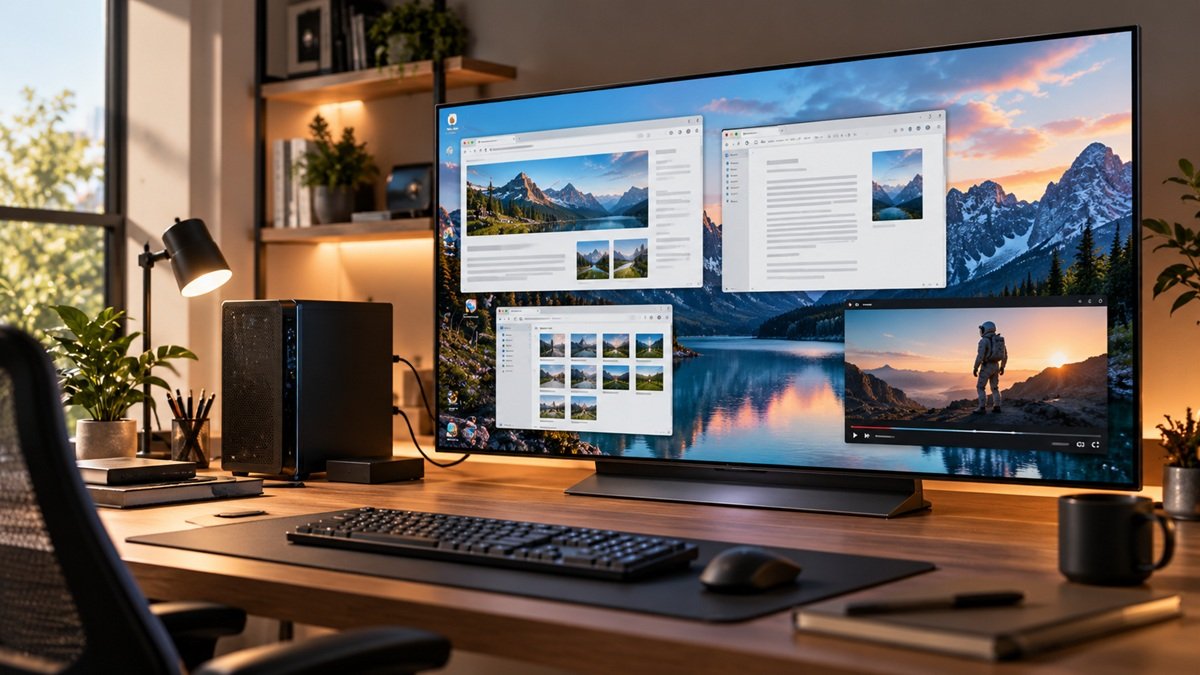
Maybe there’s a spare TV in the house, or you want something far bigger than a desk monitor for games and movies. So, can I use a TV as a computer monitor? Yes, it works, but how well it works depends mostly on how close you’ll sit and what you’ll do on it. This guide walks through the factors RTINGS compares between the two, then gives you a checklist to run before you plug your PC in.
Table of Contents
Can I Use a TV as a Computer Monitor? The Short Answer
In its comparison of PC monitors and TVs, RTINGS treats both as workable displays and says the right choice comes down to your needs. It also notes that gaming performance varies so much between models that it’s difficult to declare either type superior.
Its general guidance splits by situation. A monitor makes more sense if you sit close at a desk, want the sharpest text, browse or work on the screen, or want very high refresh rates from a gaming PC. A TV makes more sense if you want a big, immersive screen, sit farther back, or also plan to watch movies and shows on it.
If you’ve settled on a TV for the living room rather than a desk, our guide to what size TV fits your living room covers picking the size once you know your seating distance.
Distance Decides Most of It
Text sharpness up close
The same 4k resolution spread over a bigger screen means fewer pixels per inch. RTINGS’ example: a 27-inch 4k monitor has about 163 pixels per inch, while a 65-inch 4k TV has about 68. From the sofa you won’t notice. At arm’s length on a desk, text and fine detail on the TV look noticeably softer.
For what the resolution names mean, see our UHD resolution explainer.
Chroma 4:4:4 and how pixels are arranged
For sharp text from a PC, the display needs to accept a chroma 4:4:4 signal. RTINGS says most TVs do, but not all, so it’s worth checking the specific model. Both the LG C6 and the Samsung S90H support it; the RTINGS LG C6 review notes that 4:4:4 helps text clarity from a PC. For the C6 as a TV, see our LG OLED65C6 review.
The arrangement of the subpixels matters too. RTINGS reports that the C6 and the Samsung S90H both use a reworked RGWB layout that’s a bit better for PC text, with a catch: Windows’ ClearType isn’t well tuned for layouts that aren’t plain RGB. Our Samsung 65S90H review has more on the S90H.
Responsiveness: Game Mode Matters
Input lag, on average
RTINGS compared averages from 190 TVs and 134 monitors it had tested at the time of writing. TVs, measured at 4k, averaged 12.4 ms of input lag at 60Hz and 6.8 ms at 120Hz. Monitors averaged 11.7 ms and 5.5 ms. Monitors also varied less from model to model, although some TVs beat some monitors, so these are averages rather than rules.
Why game mode is non-negotiable
Monitors tend to keep low input lag in any picture mode. A TV only reaches its low input lag in its game mode; outside it, RTINGS describes the lag as far too high for gaming on almost any TV. The majority of TVs support Auto Low Latency Mode (ALLM), which switches to game mode automatically when a console or PC is detected.
Refresh rate and VRR
Monitors can reach much higher refresh rates, with some hitting 500Hz, while TVs mostly sit at 60Hz or 120Hz and a few go higher. For what refresh rate does on a TV, see our separate explainer.
On variable refresh rate, RTINGS calls it a tie, since both support most common formats; how VRR works is covered in its own explainer.
Connections and Desk Setup
Ports
TVs typically don’t have DisplayPort, so HDMI will usually be your connection. Where TVs have USB ports, those work only with the TV’s own smart system, not with your computer, so they won’t act as a hub for your keyboard or mouse the way a monitor’s USB ports can. On the plus side, TVs add tuners, optical audio out, LAN and ARC/eARC.
If your TV is an LG, see our guide on how to connect a laptop to an LG TV for LG’s wired and wireless steps.
For consoles, RTINGS notes that a display needs HDMI 2.1 bandwidth to take 4k signals at up to 120Hz. The LG C6 has that on all four of its HDMI ports.
If you want the wider picture of what the standard adds, see our explainer on what HDMI 2.1 is.
Stand and height
Monitors ship with adjustable stands. A TV usually doesn’t, so if you need to raise, tilt or reposition it on a desk, you’ll be buying a third-party mount.
Screen finish
Most TVs have glossy or semi-glossy screens, while most monitors are matte. Glossy screens look clearer but reflect more, so RTINGS suggests not putting a glossy TV directly opposite a sunny window.
What a TV Does Better
TVs have the stronger image processors. RTINGS found they upscale low-resolution content much more cleanly and smooth out artifacts from low-quality streams better than monitors, though some TVs still struggle with this. They also tend to handle HDR better and more often support Dolby Vision and HDR10+, though results vary between models.
Two caveats: many TVs switch much of that processing off in game mode, so you get less of it while playing, and a TV’s built-in smart system matters most when you’re watching content rather than using the PC.
Before You Plug Your PC Into a TV: A Checklist
- Measure your distance. At a desk, a large TV’s lower pixel density shows up as softer text.
- Confirm chroma 4:4:4 support for the exact model, and expect ClearType to look imperfect on non-RGB layouts.
- Use game mode (or make sure ALLM is working) whenever you’re gaming.
- Plan on HDMI. TVs typically lack DisplayPort, and their USB ports don’t work with your PC.
- Check HDMI 2.1 if you want 4k at 120Hz from a console.
- Budget for a mount if you need height or tilt adjustment.
- Mind the windows if the TV has a glossy screen.
Frequently Asked Questions
Can I use a TV as a computer monitor for work?
You can, but RTINGS points to a monitor for web browsing and work, or if you sit close and want the sharpest text and images. A TV is the stronger pick when you sit back and want a big screen.
Is input lag a problem when using a TV with a PC?
Mainly outside game mode. In game mode, RTINGS’ averages at the time of writing (190 TVs, 134 monitors) had monitors ahead: 11.7 vs 12.4 ms at 60Hz and 5.5 vs 6.8 ms at 120Hz. Some TVs still beat some monitors.
Do I need a special cable?
Usually HDMI, since TVs typically lack DisplayPort. Consoles need HDMI 2.1 bandwidth on the TV for their top 4k modes; our sources don’t cover cable requirements, so check your TV’s and PC’s documentation.

Nridi
Editor, SignalVetted
This article does not report independent product testing.
✅ Based on RTINGS’ PC monitor vs TV comparison (updated November 2025) and its LG C6 OLED 2026 and Samsung S90H reviews.