
How to Connect a Laptop to an LG TV: What LG’s Page Says
Last updated: October 2026
How to connect a laptop to an LG TV? LG’s US support page says you can use a wired HDMI connection, or share the screen wirelessly from a Windows PC or Mac. This article follows only that page, How to Display Your PC Screen on Your LG TV (Wired or Wireless). We haven’t tested any TV.
Table of Contents
How to Connect a Laptop to an LG TV With an HDMI Cable
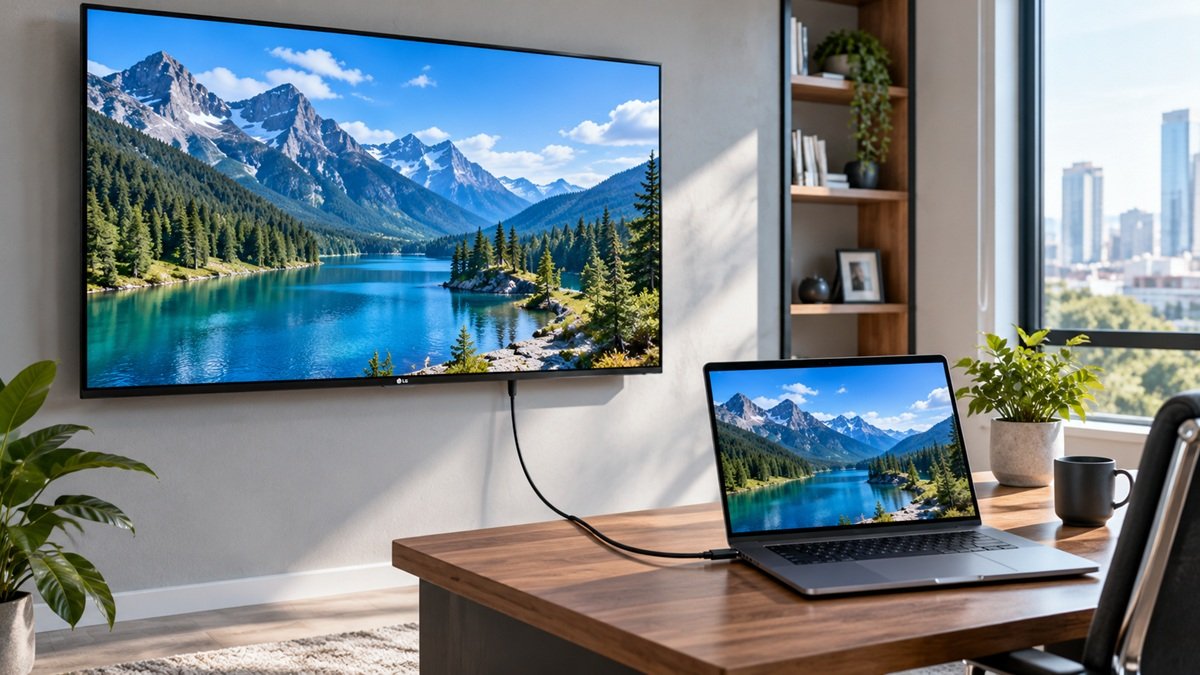
Connect an HDMI cable to the HDMI ports on the back of your PC and TV. Press the External Input or Home Hub button on the TV remote and select the connected port, such as HDMI 1.
If the TV screen is blank, press the Windows key and P together to choose a display option, such as Duplicate or Extend. On a Mac, follow the on-screen instructions to select a sharing option.
Some cables or adapters, such as DVI-to-HDMI cables, may not support audio. If you need audio, LG says to connect a 3.5 mm stereo cable between the audio ports on your PC and TV.
How to Connect a Laptop to an LG TV Wirelessly
Windows 11
Press the Windows key and K together. Select your TV from the Available displays list, then select Accept with the TV remote when the connection request appears.
Windows 10
Press the Windows key and P together, select Connect to a wireless display at the bottom of the panel, then select your TV. LG also lists an Action center route.
Mac
Make sure your Mac and TV are on the same Wi-Fi network. Open Control Center from the menu bar, select Screen Mirroring, then select your TV. Enter the 4-digit code shown on the TV. LG says the steps may vary by macOS version.
What LG’s Page Doesn’t Cover
LG’s page shows a date of 07/13/2026. It doesn’t name TV models or webOS versions. If the steps don’t work, it points to LG Chatbot or a technician visit, and a fee may apply out of warranty.
Frequently Asked Questions
Why is my mouse lagging or stuttering after connecting wirelessly?
LG says nearby Wi-Fi signals may be causing interference. It suggests the 5 GHz band on your router, with the router, PC and TV as close together as possible.
Why is the sound playing only from my PC after connecting with an HDMI cable?
LG says this may be caused by your PC sound settings or using a video-only cable. Make sure you are using a standard HDMI cable. Then select the speaker icon in the bottom-right corner of the taskbar and change the playback device to LG TV.

Nridi
Editor, SignalVetted
This article does not report independent product testing.
✅ Based on the sources named on this page.