
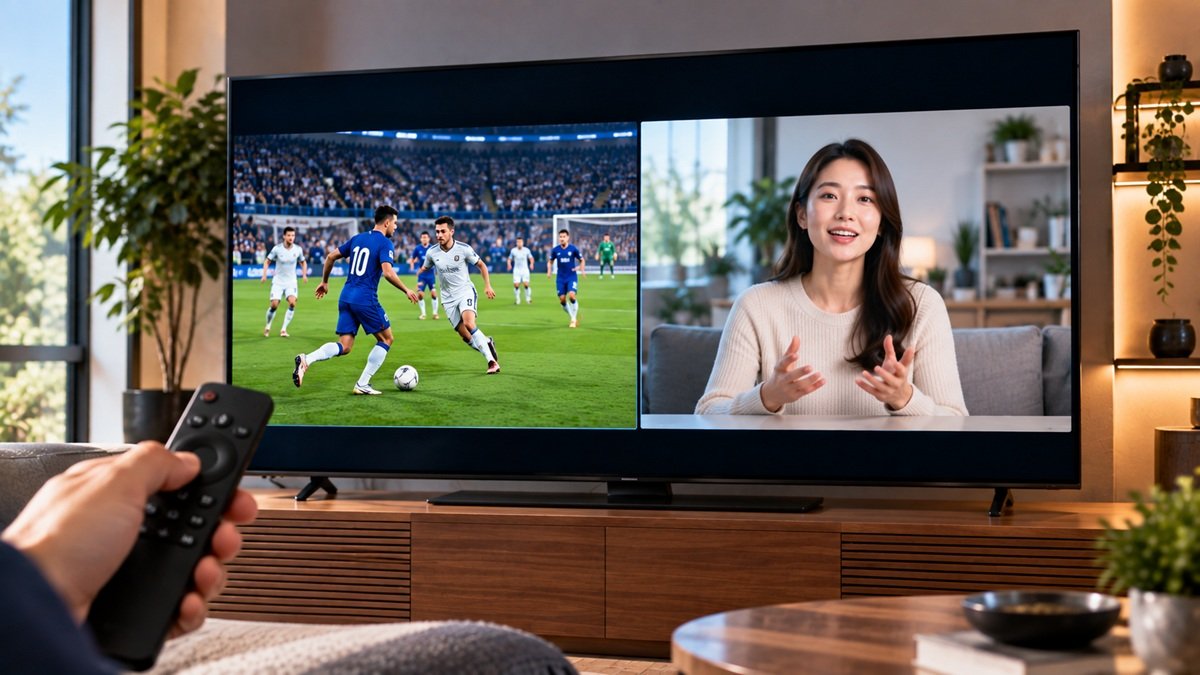
How to Split Screen on a Samsung TV With Multi View
Last updated: October 2026
🕒 4 min read
Disclosure: This article does not contain affiliate or sponsored links. SignalVetted may still reference specific products or brands for informational purposes only.
Want one thing on the main screen and something smaller beside it? Samsung’s US support page calls this feature Multi View. To split screen on a Samsung TV with it, you open it with the Home button on the remote, choose what shows on each side, then set the size, the corner and the sound. This guide follows Samsung’s page, step by step.
Table of Contents
How to Split Screen on a Samsung TV: Open Multi View
What Multi View Shows
As Samsung’s page describes it, Multi View displays two things at once. Content from a source such as an app, a Blu-ray player or a game console shows on the main left screen, while your phone is mirrored to a smaller screen.
Turn It On
Press the Home button on the remote, then select Multi View. Turn the feature on to get started and check the available options. Samsung’s page gives no other menu path for opening it.
Choose What Goes on Each Screen
The Main Screen
The first option on Samsung’s page is Select content. It sets what appears on the left side of the screen. To use an external device, go to the Source menu, select Connection Guide, then pick your device from the list.
Samsung’s page lists these left-side sources in its Multi View 2.0 and Multi View combinations: Samsung TV Plus, TV apps, connected HDMI devices, antenna or cable, and USB devices. The right-side choices differ by Multi View version, and Samsung’s page lists them.
Our guide to scanning channels on a Samsung TV covers a separate task.
The Second Window
Watch mobile/camera is the option for the second window. As the Samsung page describes it, the option can show phone content, a laptop or PC screen, a connected SmartThings camera or a connected webcam. This guide doesn’t walk through them. For the Galaxy phone side, see our guide to connecting a Galaxy phone to a Samsung TV.
Set the Size, Corner and Sound
Size and Corner
Screen size adjusts the sizes for both screens to suit your viewing preference. Samsung’s examples are placing the smaller window in the top right corner, or using split screen view to see both screens at the same time.
PIP (Picture in Picture) Position sets which corner the smaller screen takes: top left, top right, bottom left or bottom right. If you don’t like where you placed it, you can change it later.
Sound Output vs. Sound Distribution
Sound output chooses whether the audio comes from the smaller screen or the main screen. According to the page, when an external device is connected, changing the output switches it from the TV’s speaker to the device’s speaker.
Sound distribution is the other option. Samsung says it plays the audio from both screens at once, with the TV and external device speakers sounding together.
Check Whether Your TV Has Multi View
Samsung’s page says the Multi View version and the screen combinations available vary by model. Its model lists run from 2020 to 2023. We haven’t copied those lists, and this guide doesn’t say whether any other model has Multi View, either way. For your own model, check Samsung’s US support page on Multi View.
Stop Multi View From Starting on Its Own
Samsung’s page says that when you start screen mirroring on the TV, it may default to Multi View while waiting for you to choose a second source. It gives two ways to turn autorun off, each under its own model label, and we’ve kept those labels exactly as the page prints them.
- “2019 – 2021 (R – A models)”: go to Settings, then General, then Smart Features. Highlight Autorun Multi View and press Enter to deselect it.
- “2022 – 2023 (B models)”: go to Menu, then Settings, then All Settings, then General & Privacy. Select Start Screen Options, then highlight both Autorun Multi View Casting and Autorun Multi View Mirroring. Press Enter on each to deselect them.
Samsung’s page gives these two paths and no others, and we haven’t added a path for any other model.
Frequently Asked Questions
How do I split the screen on a Samsung TV?
According to Samsung’s page, press the Home button on the remote, select Multi View, and turn the feature on. Then use Select content to choose what shows on the left and Watch mobile/camera for the second window.
Can I choose which screen the sound comes from?
Samsung’s page lists Sound output for choosing whether the audio comes from the smaller or the main screen. It lists Sound distribution for playing the audio from both screens at once.
How do I stop Multi View from starting on its own?
Samsung’s page gives two paths. For the group it labels “2019 – 2021 (R – A models)”, deselect Autorun Multi View under Settings, General, Smart Features. For “2022 – 2023 (B models)”, deselect Autorun Multi View Casting and Autorun Multi View Mirroring under Start Screen Options.

Nridi
Editor, SignalVetted
This article does not report independent product testing.
✅ Based on the Samsung US support page on Multi View.