
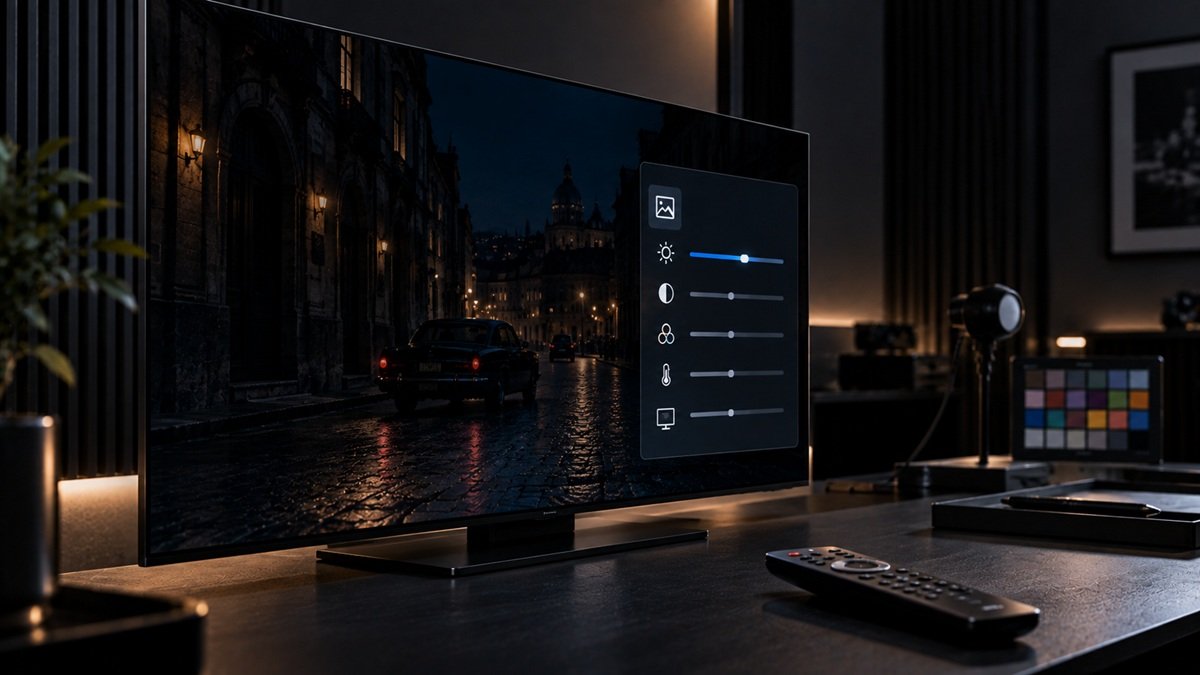
Why Is My OLED TV Too Dark? The Real Setting to Check
Last updated: September 2026
🕒 7 min read
Disclosure: This article does not contain affiliate or sponsored links. SignalVetted may still reference specific products or brands for informational purposes only.
Your OLED TV looked bright and punchy on the showroom wall, but at home the picture looks dim, flat, or oddly gray in ordinary daylight. If you’re asking why your OLED TV is too dark, the cause is usually a setting rather than a hardware fault — a small handful of auto-brightness features, and which one is actually responsible depends on which brand you own. This article skips the generic “just turn off Eco mode” advice and goes straight to the specific settings LG and Samsung each document for this exact symptom. For a broader look at how OLED TVs stack up overall, our full OLED TV guide covers that separately from this settings breakdown.
Table of Contents
The Short Answer: It’s Not One Setting
Most advice online treats this as a single toggle. It isn’t. According to LG’s own support documentation, a dark or dim LG TV screen is “usually because [Energy Saving] is turned on or [Picture Mode] is not set correctly” — two separate settings that can each cause the same symptom on their own. Samsung’s own support documentation describes a different, wider cluster: four separately-named features split across two different menu locations, each of which can automatically adjust the picture’s brightness for a different reason — ambient light, contrast, power saving, or on-screen motion.
That distinction matters in practice. A reader who copies a single forum tip — just disable “Eco Mode” and stop there — may fix the issue on one TV and see no change at all on another, simply because their specific model’s actual culprit lives under a different name, in a different menu, than the one the tip described. If you want background on how OLED panels produce light in the first place, our explainer on what OLED TV technology actually is covers it in depth. One note on scope: both brands’ support pages cover their TVs generally, not OLED models specifically.
How It Works, Brand by Brand
LG TVs: Energy Saving and Picture Mode
According to LG’s own support guidance, a dark or dim screen is usually caused by one of two settings. The first is the Energy Saving setting. The second is Picture Mode, which LG says has to be set correctly. LG’s own recommended fix, quoted directly, is to “set [Energy Saving Step] to [Off], then change [Picture Mode] to [Standard].” If that doesn’t resolve it, LG’s guidance adds a fallback: “If changing these settings does not resolve the issue, try resetting the picture settings” — a reasonable next step if the two primary settings weren’t the actual cause on your specific set.
Samsung TVs: Four Separate Features, Two Menus
Samsung’s own support documentation is more granular, and this is where a single-setting mental model breaks down fastest. Samsung’s page opens with the general cause: when the function that automatically adjusts video brightness according to the TV’s surroundings is turned on, the screen can become brighter or darker on its own while you watch. It then names four separate settings that adjust brightness automatically, each in its own way. Contrast Enhancer “automatically adjusts your TV’s brightness so that the difference between bright and dark areas is not excessive,” and lives under Settings, Picture, Expert Settings — a different location from the other three.
Brightness Optimization “automatically adjusts the picture brightness according to the ambient light.” Brightness Reduction “adjusts the screen brightness to reduce power consumption.” Motion Lighting works by “automatically adjusting the brightness according to the movement of the screen.” Those last three sit together under General and Privacy, then Power and Energy Saving. A viewer who only checks Expert Settings, or only checks Power and Energy Saving, may still miss the setting actually causing the dimness on their TV.
Scenario-Based Guidance
If you own an LG OLED TV: start with Picture Mode. Switch it to Standard, then confirm Energy Saving is set to Off. If the picture still looks dim after both changes, LG’s own guidance points to a picture-settings reset as the next step, rather than continuing to hunt through unrelated menus.
If you own a Samsung OLED TV: don’t stop after disabling one feature. Check Expert Settings for Contrast Enhancer first, since it lives in a different menu than the other three. Then go to Power and Energy Saving and turn off Brightness Optimization, Brightness Reduction, and Motion Lighting individually — turning off only one of the three and assuming the job is done can leave the others still dimming the picture.
If you’ve checked every setting above on your specific brand and the picture is still visibly dimmer than it was in the store, that’s a different situation than what this article covers — at that point, our full guide to calibrating an OLED TV walks through a proper calibration pass rather than a single-setting fix.
Common Misconceptions or Mistakes
A common misconception is that a dim OLED picture signals a failing panel or an early sign of wear. LG’s own support page says a dark or dim screen is usually down to settings, and Samsung’s page walks through menu settings rather than hardware causes — so work through the menu changes above before assuming a hardware problem.
A second misconception is assuming “Eco Mode” is one universal setting with one universal name across every brand and every menu. It isn’t. LG frames the issue around Energy Saving and Picture Mode together; Samsung splits the same underlying idea across four independently-named, independently-located toggles. Treating “turn off Eco Mode” as a complete, brand-agnostic instruction is exactly the gap that leaves some readers with an unsolved dim screen after they’ve already tried “the fix.”
A third misconception worth naming: assuming the store unit was somehow a different, better TV. This is general background rather than something LG’s or Samsung’s support pages address: showroom lighting is very different from a typical living room, so a picture that looked bright there can look dimmer at home before any setting is involved. What the two brands do document is the set of settings above, which is why they’re the first place to look.
Frequently Asked Questions
Why is my OLED TV too dark compared to how it looked in the store?
Showroom lighting is very different from a typical living room — that’s general background, not something either brand documents. What LG and Samsung do document is that auto-brightness settings — Energy Saving and Picture Mode on LG, or four separate automatic-brightness settings on Samsung — can leave the picture dimmer than you expect.
Does turning off Eco Mode fix a dark OLED screen?
It can, but it isn’t guaranteed to be the whole fix. On Samsung TVs specifically, Eco-style brightness behavior is actually split across four separately-named settings in two different menus, so disabling only one may leave the others still dimming the picture.
Is a dark OLED picture a sign my TV is failing?
Not based on the settings-level causes documented by LG and Samsung above. An actual failing panel is a separate situation this article doesn’t cover — check the settings here first before assuming a hardware problem.

Nridi
Editor, SignalVetted
This article does not report independent product testing.
✅ Based on LG’s and Samsung’s own official support documentation.