How to Calibrate an OLED TV: LG and Samsung’s Actual Settings
Last updated: September 2026
🕒 8 min read
Disclosure: This article does not contain affiliate or sponsored links. SignalVetted may still reference specific products or brands for informational purposes only.
You’ve picked a picture mode on your OLED TV — maybe Standard, maybe Cinema — and the picture looks fine. But “fine” and “actually calibrated” aren’t the same thing, and generic advice online tends to hand out one set of numbers as if every TV and every brand works the same way. They don’t. LG expects you to enter specific values yourself from a published table.
Samsung’s page describes an app that has your phone do the measuring instead. This article covers what each brand’s own documentation actually says, so you’re calibrating the TV you own rather than a generic one. For a wider look at how OLED TVs handle picture quality overall, our full OLED TV guide covers that separately from this settings breakdown.
Table of Contents
The Short Answer: There’s No One Universal Setting
LG’s own support documentation starts from picture mode: users should “select the Picture Mode that is best suited to your viewing environment, preferences, or video type.” Beyond that, the two brands’ pages take completely different routes. LG publishes an actual numeric settings table you’re meant to enter by hand, organized by lighting environment. Samsung instead offers an automated app, called Smart Calibration, that measures your room and screen with your phone’s camera and adjusts the picture for you.
Neither approach is “the” correct way to calibrate a TV — they’re two different brands’ own answers to the same question, and using the wrong one for your TV means chasing settings that don’t apply to you. The support pages reviewed here document LG’s numeric table and Samsung’s Smart Calibration app respectively, so follow the page for your own brand rather than looking for the other brand’s tool.
How to Calibrate an OLED TV, Brand by Brand
LG: Numbers You Enter Yourself
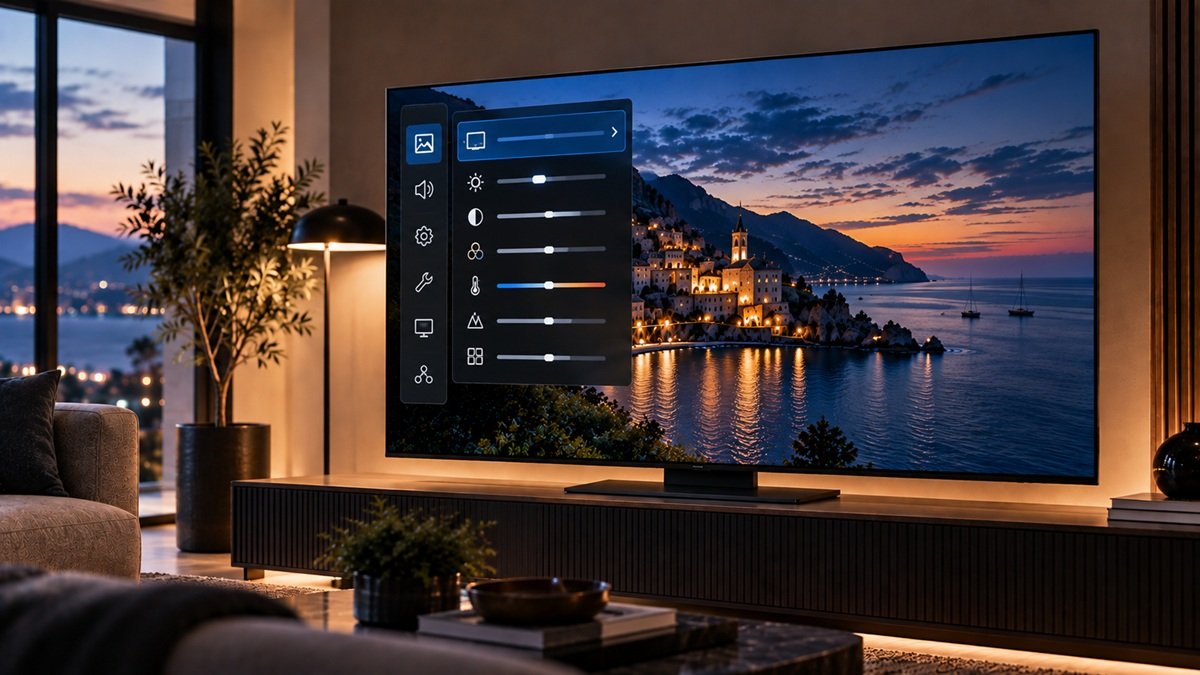
Per LG’s own support page, the picture settings menu lives under Settings, All Settings, Picture Settings. From there, LG publishes three preset tables tied to lighting environment. For natural daylight in Vivid Mode: Backlight/OLED Light 100, Contrast 100, Brightness 50, Sharpness 30, Color 70, Tint 0, Color Temperature C50. For typical indoor artificial light in Standard Mode: Backlight/OLED Light 80, Contrast 85, Brightness 50, Sharpness 25, Color 50, Tint 0, Color Temperature C20. For a dedicated dark room in Cinema Mode: Backlight/OLED Light 80, Contrast 85, Brightness 50, Sharpness 10, Color 50, Tint 0, Color Temperature 0.
LG’s table labels the first setting “Backlight/OLED Light”; if you want background on how OLED panels produce light, our explainer on what OLED TV technology actually is covers it in more depth. LG is also upfront that the numbers alone aren’t the whole picture: “room lighting, screen reflectance, picture settings and the video content” all affect the final result.
Samsung: Smart Calibration Automates It
According to Samsung’s own support documentation, Smart Calibration is “an automated display picture quality calibration app solution which allows users to calibrate Samsung’s display products with a touch of a button from your smartphone.” Rather than typing in numbers, you connect your TV and phone to the same Wi-Fi network, then hold your phone’s rear camera 1 to 3 centimeters from a white rectangle shown on the screen while the app measures and adjusts the picture directly. It needs a compatible Samsung Galaxy phone (S, Note, Fold, or Z Flip from January 2019 onward) or a Face-ID-equipped iPhone from the same period, plus a compatible Samsung TV model.
There are two modes: Basic Mode is described as “quick & simple picture quality adjustment within 15~30 seconds,” while Professional Mode takes “about 5 to 8 minutes” and is described as optimizing “more details of the picture for that is on par with professional level” — Samsung recommends using a tripod in a dark room for the more accurate result. Once it’s done, the TV’s Picture Mode switches automatically to “Movie (Calibrated).”
Scenario-Based Guidance
If you own an LG OLED TV: figure out which of the three lighting environments actually matches your room, then go to Settings, All Settings, Picture Settings and enter that table’s values by hand rather than guessing at a single number that’s supposed to work everywhere.
If you own a Samsung OLED TV: check that your phone model and TV model are both supported before expecting Smart Calibration to appear. If you just want a fast improvement, Basic Mode takes under half a minute; if you want the more thorough result, set up a tripod in a dark room and run Professional Mode instead.
If what actually brought you here is a specific symptom — a picture that looks noticeably too dark rather than just “not quite right” — that’s a narrower, more diagnostic question than general calibration, and our guide to fixing a too-dark OLED picture walks through that specific cause instead.
If you’re setting up a TV for films, see our guide to OLED TV settings for movies.
Common Misconceptions or Mistakes
A common misconception is assuming “calibrate your OLED TV” means the same fixed set of magic numbers regardless of brand or room. LG’s own table alone has three different presets depending on lighting, and the Samsung page reviewed here describes an automated measurement rather than a numeric table. There isn’t a single universal answer to copy.
A second misconception is treating picture mode selection as the entire job. LG’s guidance opens with picture-mode selection, but its published table also lists specific Backlight/OLED Light, Contrast, Brightness, Sharpness, Color, Tint, and Color Temperature values for each mode — choosing “Cinema” and stopping there skips the rest of the table LG publishes.
A third misconception is assuming Smart Calibration works on any Samsung TV with any smartphone. Samsung’s own documentation lists compatible phone models, calls for a compatible Samsung TV model, and requires both devices to be on the same network — it’s not described as a universal feature for every Samsung set paired with every phone. Checking compatibility first saves a frustrating troubleshooting session over a feature that was never going to appear on that particular pairing.
Frequently Asked Questions
Do I need professional calibration equipment to calibrate an OLED TV properly?
Neither approach described here requires dedicated meter hardware: LG’s method is a table of values you enter through the on-screen menu, and Samsung’s Smart Calibration uses your smartphone’s camera. Samsung describes its Professional Mode as “on par with professional level,” but that’s Samsung’s own description, and LG notes that room lighting, screen reflectance and content also affect the result — so treat these as the brands’ own starting points rather than proof of a fully professional calibration. Samsung recommends a tripod for Professional Mode, which is a household item.
Which Samsung Smart Calibration mode should I use?
That depends on how much time you want to spend. Basic Mode is built for a quick pass in under half a minute. Professional Mode takes roughly 5 to 8 minutes and is described by Samsung as reaching a more detailed, professional-level result, particularly when run with a tripod in a dark room.
Does calibrating my OLED TV mean the same thing as just choosing a picture mode?
No. LG’s page starts with choosing a picture mode, but it also publishes separate numeric adjustments — Backlight/OLED Light, Contrast, Brightness, and more — for each lighting environment, so picking a mode is only part of what LG describes.

Nridi
Editor, SignalVetted
This article does not report independent product testing.
✅ Based on LG’s and Samsung’s own official support documentation.