How to Update Sony BRAVIA TV Software
Last updated: November 2026
🕒 3 min read
Disclosure: This article does not contain affiliate or sponsored links. SignalVetted may still reference specific products or brands for informational purposes only.
If you want to know how to update Sony BRAVIA TV software, Sony’s own Help Guide has a short page on it.
This guide follows the “Software updates” page of Sony’s Help Guide (en-003 version).
The page lists these models: BRAVIA 9, BRAVIA 8, BRAVIA 8 II, BRAVIA 7, BRAVIA 5, A95L, XR8B and XR8C.
It doesn’t say which country it was written for or give a date, so this article makes no claim about either.
We haven’t tested any of these steps.
Table of Contents
How Sony Says Updates Reach the TV
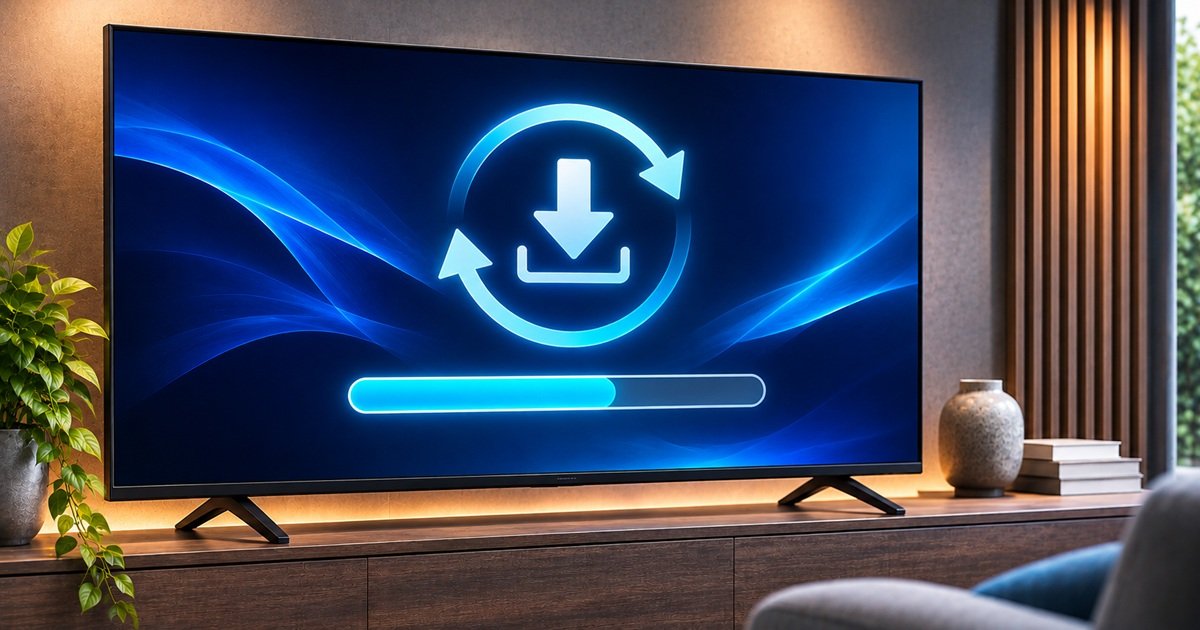
Sony says it will provide software updates “from time to time”. It adds that the easiest way to receive them is via an internet connection to the TV.
How to Update Sony BRAVIA TV Software: Turn On Automatic Update Checks
Sony’s page gives two steps for having the TV check for software updates automatically:
- Press the Input button on the remote control and select [Help]. If [Help] does not exist, select [Edit] and add [Help].
- Select [Status & Diagnostics], then [System software update], and enable [Automatically check for update].
How to Update Sony BRAVIA TV Software Manually
Sony’s page says that to update the software manually, you select [Software update]. It doesn’t say where in the menus that option sits, so this guide can’t point you to it.
Where to See What an Update Changed
According to Sony, you can check the BRAVIA notifications or Sony’s support website for a list of changes made by a software update. This guide doesn’t list any changes.
If Automatic Checking Is Off
Sony notes that when [Automatically check for update] is disabled, the TV cannot receive notifications even when a software update is available.
Updating software via USB storage device
If you do not have a network connection, you can also update the software by using a USB storage device. Sony’s page doesn’t give the USB steps, and neither does this guide.
What This Guide Doesn’t Cover
This page sticks to what Sony’s “Software updates” page says.
It doesn’t cover version numbers or what any update changes.
It also doesn’t cover what to do if an update fails, or how the steps apply to models the page doesn’t list.
For turning off Demo mode on a Sony Google TV or Android TV, see our guide on how to turn off demo mode on a Sony TV.
Frequently Asked Questions
How to update Sony BRAVIA TV software: how do I make the TV check for updates automatically?
Sony’s page says to press the Input button on the remote and select [Help]. If [Help] does not exist, it says to select [Edit] and add [Help].
Then select [Status & Diagnostics], [System software update], and enable [Automatically check for update].
Will the TV tell me about an update if automatic checking is turned off?
Not according to Sony. Its page says that when [Automatically check for update] is disabled, the TV cannot receive notifications even when an update is available.
Can I update a Sony TV without a network connection?
Sony says that without a network connection you can also update the software by using a USB storage device. The page doesn’t describe the steps.

Nridi
Editor, SignalVetted
This article does not report independent product testing.
✅ Based on Sony’s Help Guide, “Software updates” page (en-003 version; the page shows no date).