How to Turn Off Demo Mode on a Sony TV (Google TV and Android TV)
Last updated: November 2026
🕒 3 min read
Disclosure: This article does not contain affiliate or sponsored links. SignalVetted may still reference specific products or brands for informational purposes only.
If you want to know how to turn off demo mode on a Sony TV, the steps depend on the type of TV.
This guide covers only Sony Google TV and Android TV models. It does not cover other Sony TVs.
The demo mode steps follow Sony Support’s article 00050389 (US edition). The way to tell which type of TV you have comes from Sony Canada’s article 00200248.
The text we reviewed for either page doesn’t include a date, so this article says nothing about when they were written. We haven’t tested any of these steps.
Table of Contents
What Demo Mode Is
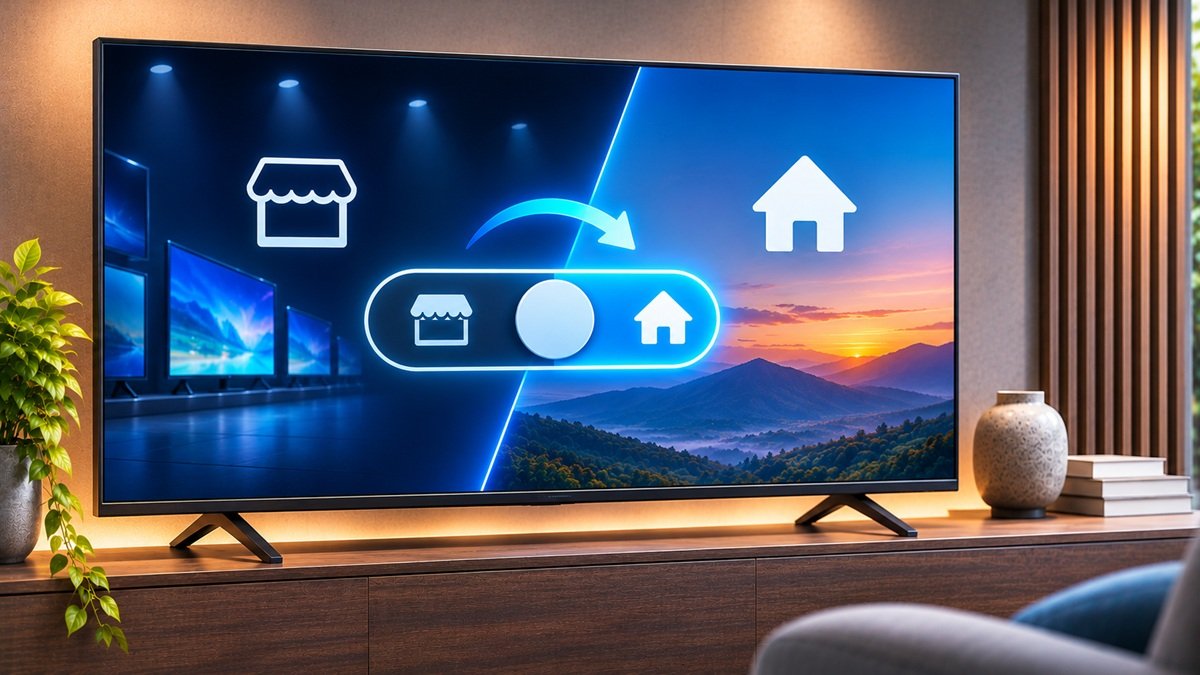
Sony’s article says retailers use demo mode to show off a TV’s functions and features, which display at the top and bottom of the screen.
Sony doesn’t recommend using demo mode, because it limits some of the features and functions commonly used at home.
Check That You Have a Google TV or Android TV
This part comes from Sony Canada’s article 00200248, not from the US page. It says Google TV and Android TV are TVs that use Google’s Android operating system.
Sony Canada’s article lists more than one way to check. Two of them are covered here:
- Home screen: Press the HOME button on the remote.
- On a Google TV signed in to a Google account, there is a Google TV display in the top left or upper right.
- There is also a Google account icon in the upper left or upper right corner that opens a dashboard.
- If you are not signed in, a Google TV display shows at the bottom of the screen.
- An Android TV shows a clock or Settings icon in the upper right corner.
- Specifications: Open your model’s support page on Sony’s website, go to its Specifications, and scroll to the Software section.
- If the Operating System field lists Android or Android TV, the TV is an Android TV or Google TV.
The article adds that the Home screens of the two types are similar, and that what shows in the upper right varies by model and settings.
How to Turn Off Demo Mode on a Sony Google TV or Android TV
Sony’s US article gives these steps for Google TV and Android TV models:
- Open the Settings screen. If your remote has a Quick Settings button, press it and select Settings. If it doesn’t, press the HOME button and select Settings.
- Choose the path that matches your TV’s Android version:
- Android 10 or later: System, then Retail mode settings.
- Android 9: Device Preferences, then Retail mode settings.
- Android 8.0 or earlier: Retail mode settings.
- Set Demo mode and Picture reset mode to Off.
Sony notes that the steps may vary depending on your TV’s menu options. Its article doesn’t explain how to find your Android version, so this guide can’t either.
It also doesn’t say what Picture reset mode does, only that both settings go to Off.
Another Way to Cancel Demo Mode on Some Models
Sony says that on some models you can also cancel demo mode by holding down the TV button on the side or the back of the TV.
Its article doesn’t say how long to hold the button.
What This Guide Doesn’t Cover
Sony’s US article also has steps for other kinds of Sony TVs. They aren’t covered here.
This guide also doesn’t cover what to do if the steps don’t match your menus.
Frequently Asked Questions
How to turn off demo mode on a Sony TV: where is the setting?
On a Google TV or Android TV, it is under Retail mode settings in Settings. The path to get there depends on the TV’s Android version, as listed above.
Do I need to turn off Picture reset mode too?
Sony’s article says to set both Demo mode and Picture reset mode to Off. It doesn’t explain what Picture reset mode does.
How do I know if my Sony TV is a Google TV or an Android TV?
Two of the ways Sony Canada’s article gives are the Home screen and the Operating System field on your model’s Specifications page. See the section above.
Why does my Sony TV have a Demo mode setting at all?
According to Sony, retailers use it to show a TV’s functions and features.

Nridi
Editor, SignalVetted
This article does not report independent product testing.
✅ Based on Sony Support US article 00050389 and Sony Canada article 00200248 (the text we reviewed for either page doesn’t include a date).