What Is Roku and How Does It Work?
Last updated: September 2026
🕒 4 min read
Disclosure: This article does not contain affiliate or sponsored links. SignalVetted may still reference specific products or brands for informational purposes only.
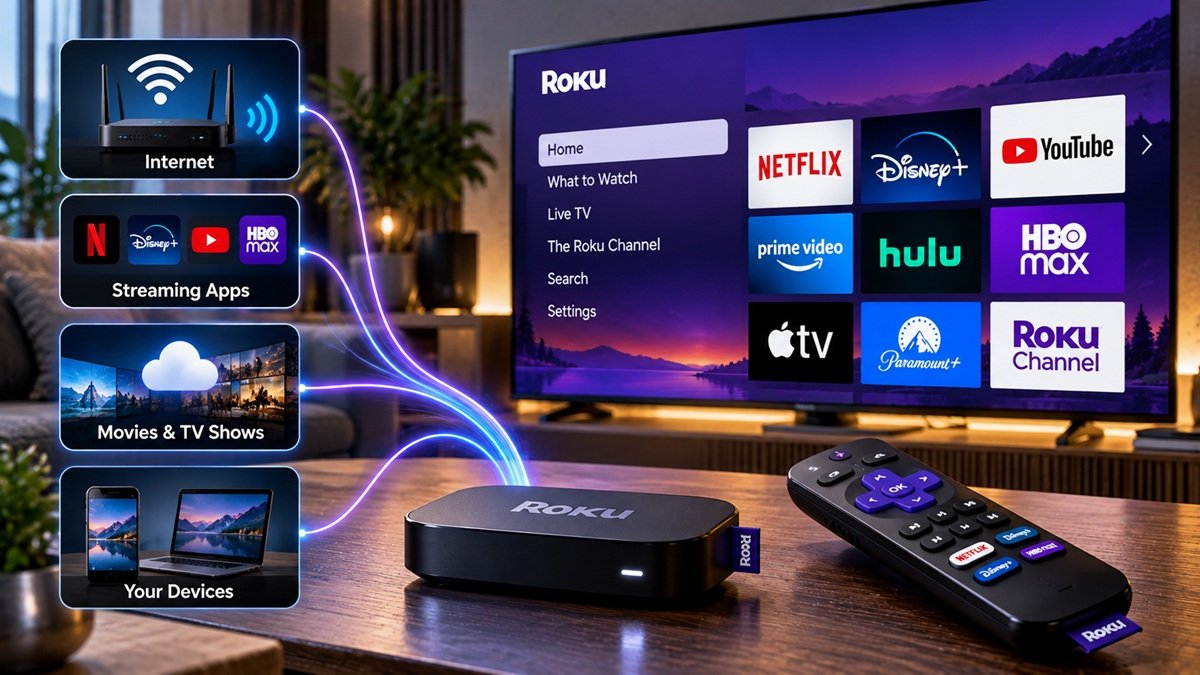
Is Roku a gadget you plug in, or something built into a TV? Roku’s support pages show both. So the short answer to what is Roku is this: Roku OS can be built into a Roku TV, or Roku can be a separate streaming player or Streaming Stick that connects to a TV. Either way, Roku’s setup guides go beyond plugging in. They also walk you through connecting to a network and signing in to a Roku account. This guide follows those guides, one at a time.
Table of Contents
What Is Roku? A TV or a Player
Roku Support has a separate setup guide for each form.
Roku TV
Roku Support says a Roku TV comes with Roku OS built in, for a smart TV experience with movies and shows. For the general idea, see our guide on what a smart TV is.
Roku players and Streaming Sticks
A Roku streaming player or Roku Streaming Stick is a separate device. Roku’s player guide has you connect it to a TV, using an HDMI port on that TV.
How Does Roku Work? From Setup to Streaming
The Roku Support pages this guide follows are setup guides, so this section covers how Roku works at the level of setup: what the steps ask for, the order they come in, and what you can do afterward.
What the setup steps ask for
For a player or Streaming Stick, Roku Support’s setup guide for players and Streaming Sticks asks for an HDMI port on your TV and the HDMI cable that came with the device. It also asks for a power source, either a USB port on the TV or a wall outlet, and a Roku remote, paired if it’s a voice remote or fitted with fresh batteries. Then come your home Wi-Fi network and its password, and a phone or tablet to verify your email when you activate the account.
Some Roku devices have an Ethernet port, and Roku says you can plug those into your router with a cable.
For a Roku TV, Roku Support’s Roku TV guide lists the TV and its remote, a power outlet, and your Wi-Fi network name and password.
The setup order
Here is the order each guide gives, condensed.
Player or Streaming Stick:
- Connect the device to your TV with the HDMI cable.
- Power it, from a USB port on the TV or a wall outlet.
- Turn on the TV and choose the HDMI input the device is plugged into.
- Set up the remote: pair a voice remote, or fit fresh batteries in a Roku remote.
- Connect to the internet by choosing your Wi-Fi network and entering the password.
- Wait while the software updates install.
- Optionally, set up a voice remote to control your TV’s power and volume. Roku says some voice remotes can do this.
- Activate your account by following the on-screen instructions and verifying your email on another device, then sign in or finish creating a Roku account, which Roku Support’s guide describes as free.
Roku TV:
- Power on the TV. After the startup screen, Roku says the Guided Setup begins on its own.
- Prepare the remote, and pair a voice remote if the guide asks you to.
- Choose your language.
- Choose your country and the home-use setup.
- Connect to Wi-Fi. The TV then downloads Roku OS updates and restarts.
- When prompted, sign in to a Roku account or create one.
What happens after setup
Roku’s player guide says the finished device can be personalized, and that you can use the Roku Channel Store to add new streaming channels, games and other apps. For a Roku TV, Roku’s guide says activation links the TV to your account and lets you use the channel store and personalize the TV.
Roku TV or Roku Player: What Changes on Setup Day
If you have a player or Streaming Stick, Roku’s player guide starts with the physical connection: the HDMI cable, then power, then choosing the matching HDMI input on the TV.
If you have a Roku TV, Roku Support’s setup guide for Roku TVs starts with unboxing and power, then moves on to the remote, language, country and Wi-Fi.
Already have a Roku TV and want a separate guide for it? We cover how to restart a Roku TV.
Plugging It In Is Not the Whole Setup
For a player, the physical part is the HDMI connection and power. Roku Support’s player guide then covers the internet connection, software updates and account activation.
For a Roku TV, after power-on, Roku’s guide covers Wi-Fi, Roku OS updates with a restart, and the account step.
Frequently Asked Questions
What is Roku: a TV or a streaming device?
Roku Support describes both. A Roku TV comes with Roku OS built in. A Roku streaming player or Streaming Stick is a separate device you connect to a TV.
Does Roku need an internet connection?
Both of Roku’s setup guides include a connection step. The Roku TV guide lists your Wi-Fi network name and password among what you’ll need, and the player guide has you connect the device to the internet.
Does Roku setup ask for an account?
Both guides include an account step. The player guide has you activate the account by verifying your email on another device. The Roku TV guide has you sign in or create an account when prompted.

Nridi
Editor, SignalVetted
This article does not report independent product testing.
✅ Based on Roku Support’s setup guides for Roku players and Roku TVs.