
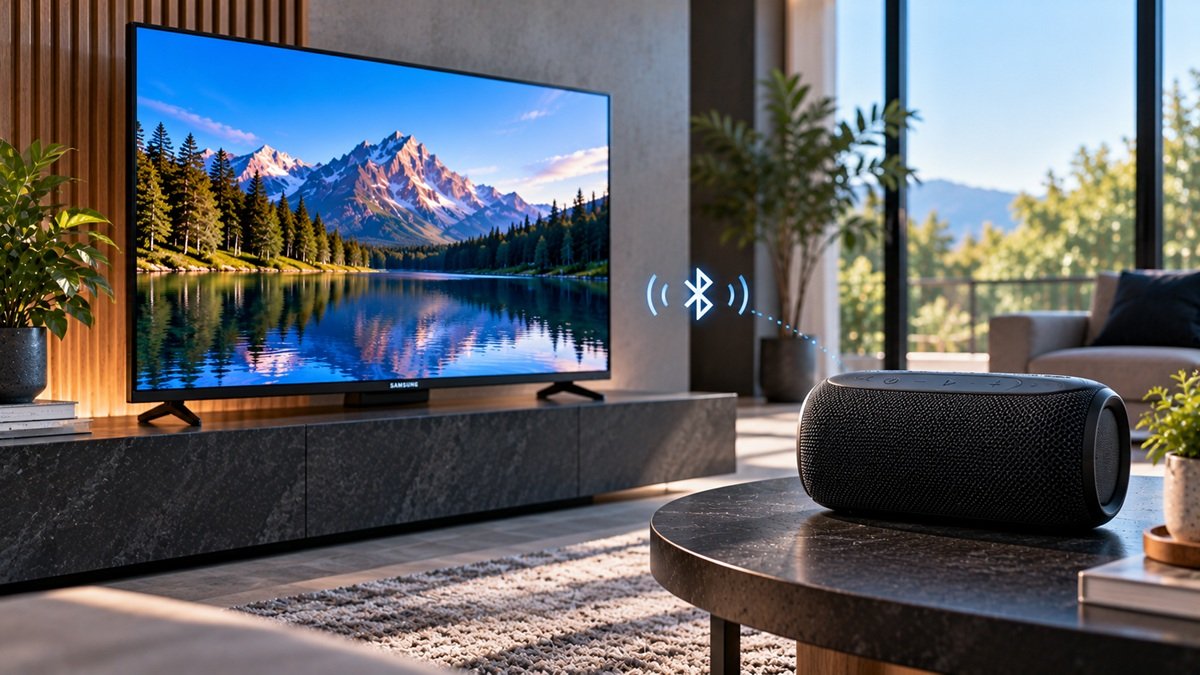
How to Connect a Bluetooth Speaker to a Samsung TV
Last updated: October 2026
🕒 3 min read
Disclosure: This article does not contain affiliate or sponsored links. SignalVetted may still reference specific products or brands for informational purposes only.
Before you work out how to connect a Bluetooth speaker to a Samsung TV, it helps to know that Samsung generally treats Bluetooth as a last resort. Samsung’s US support page, “Pair a Bluetooth speaker to your Samsung TV”, gives the menu path and a list of cautions. This article follows that page only.
Table of Contents
Before You Connect a Bluetooth Speaker to a Samsung TV
Samsung says that connecting an audio device by Bluetooth is generally a last resort. It adds that it’s often better to use Wi-Fi or a wired connection, Digital Audio Out (Optical) or HDMI (ARC), if your device supports it, though Bluetooth can save you some wires and hassle. This article covers Bluetooth only.
Steps to Pair a Speaker With Your Samsung TV
1. Put the speaker in pairing mode
Samsung’s page tells you to put the speaker into Bluetooth pairing mode and make sure it is discoverable. For how to do that, it points you to the speaker’s user manual, and it doesn’t give those steps itself.
2. Open the Bluetooth speaker list and select your speaker
Next, go to the Bluetooth audio device list on the TV and select the speaker you want to pair. Samsung says the process is slightly different depending on your TV model, and that most Samsung TVs have the same steps:
- Navigate to Home.
- Select Settings, then All Settings.
- Select Sound, then Sound Output.
- Select Bluetooth Speaker List.
Because the process can differ by model, your TV’s menus may not match this path exactly. The page doesn’t describe anything beyond selecting the speaker, so this article stops here too.
Limits Samsung Lists for Bluetooth Audio
Samsung’s page lists six cautions. Read them before you pair:
- The TV can use only one Bluetooth audio device at a time.
- You can’t use Bluetooth devices and the Wi-Fi Speaker Surround Setup feature (also called Surround), or TV SoundConnect, at the same time.
- Compatibility issues may occur, depending on the Bluetooth device. Samsung’s example is that some Bluetooth headphones are designed for mobile devices exclusively and won’t pair with a TV.
- Lip-sync errors may occur.
- The TV and the Bluetooth device may disconnect, depending on the distance between them.
- A Bluetooth device may hum or malfunction if a part of your body touches the receiving or transmitting system of the device or the TV, if a wall, corner or office partition obstructs the signal, or if devices on the same frequency band cause interference, including medical equipment, microwave ovens and wireless LANs.
What Samsung’s Page Doesn’t Say
The page doesn’t show a date, list which TV models or years it applies to, or explain how to fix lip-sync errors, drops or humming. If a step on your TV doesn’t match the path above, the page offers only its note that the process differs slightly by model.
Frequently Asked Questions
How to Connect a Bluetooth Speaker to a Samsung TV
Put the speaker in pairing mode and make sure it is discoverable, using its manual. Then navigate to Home, Settings, All Settings, Sound, Sound Output and Bluetooth Speaker List on the TV and select the speaker. That is the path Samsung’s support page gives.
Can I use two Bluetooth speakers at once?
According to Samsung’s page, the TV can use only one Bluetooth audio device at a time. The page doesn’t describe a way around this.
Does Samsung recommend Bluetooth for TV sound?
Not as a first choice. Samsung calls Bluetooth generally a last resort and says it’s often better to use Wi-Fi or a wired Optical or HDMI (ARC) connection, if your device supports it.

Nridi
Editor, SignalVetted
This article does not report independent product testing.
✅ Based on the sources named on this page.