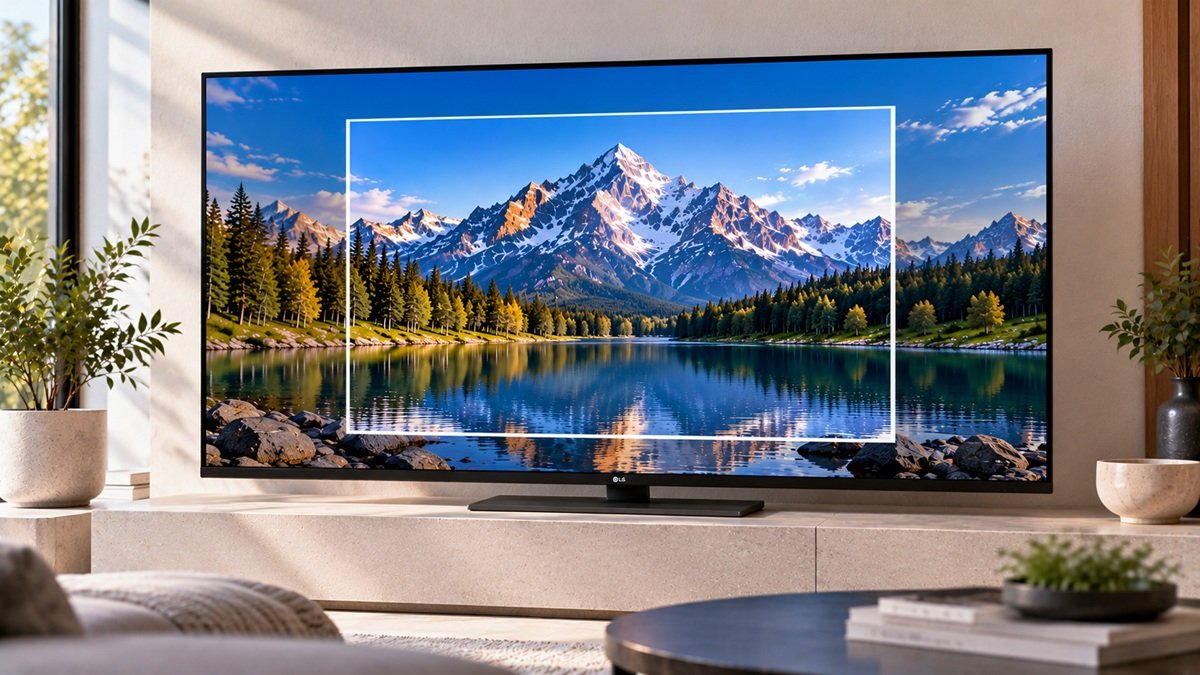
How to Adjust the Aspect Ratio on an LG TV: LG’s Steps
Last updated: October 2026
🕒 1 min read
Disclosure: This article does not contain affiliate or sponsored links. SignalVetted may still reference specific products or brands for informational purposes only.
LG gives a menu path for each webOS version. To show how to adjust the aspect ratio on an LG TV, we follow only LG’s US support page, “LG TV – How to Adjust the Aspect Ratio”. We haven’t tested these steps.
Table of Contents
How to Adjust the Aspect Ratio on an LG TV: webOS 24 and 23
- Turn on the TV and press the button on the remote.
- Select the gear icon to open the Settings menu.
- Select Picture.
- Select Aspect Ratio.
- Choose an aspect ratio from the dropdown list.
How to Adjust the Aspect Ratio on an LG TV: Older webOS Versions
- webOS 22 / 6.0: press the button on the remote, then select All Settings, Picture, Aspect Ratio, then User Selection.
- webOS 5.0 or older: press the button on the remote, then select All Settings, Picture, Aspect Ratio Settings, then Aspect Ratio.
Two Notes From LG
- LG says the picture settings change when you switch between inputs (HDMI, Live TV, etc.) unless “Apply to All Inputs” is selected.
- LG says built-in apps on the TV, such as Netflix, Hulu and Prime, will always change back to the default settings upon exiting the app or powering off the TV.
What LG’s Page Doesn’t Say
LG’s page shows a date of 07/17/2026. It doesn’t name the aspect ratio options or the button to press on the remote.
Frequently Asked Questions
How do I adjust the aspect ratio on an LG TV?
For webOS 24 and 23, LG’s steps go through the gear icon, Picture, then Aspect Ratio. Older versions have their own paths.
Do picture settings change when I switch inputs?
For webOS 24 and 23, LG’s steps go through the gear icon, Picture, then Aspect Ratio. Older versions have their own paths.

Nridi
Editor, SignalVetted
This article does not report independent product testing.
✅ Based on the sources named on this page.