
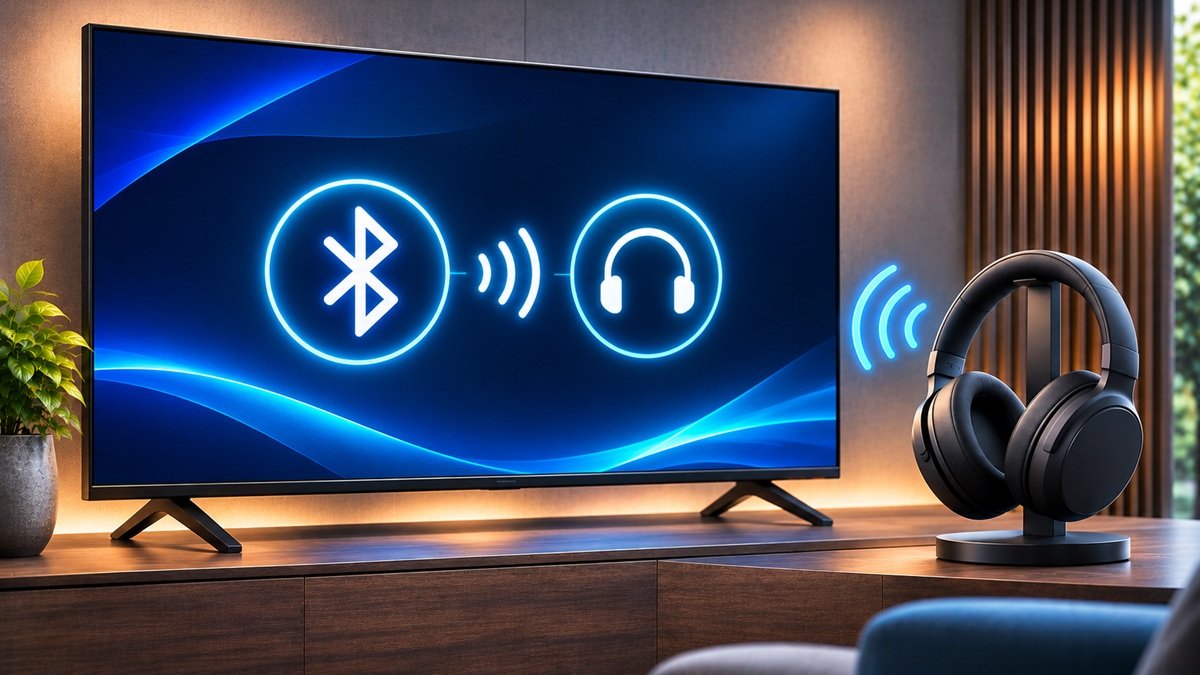
How to Connect Bluetooth Headphones to Sony TV
Last updated: November 2026
🕒 3 min read
Disclosure: This article does not contain affiliate or sponsored links. SignalVetted may still reference specific products or brands for informational purposes only.
If you want to know how to connect Bluetooth headphones to Sony TV, Sony’s Help Guide covers it on one page.
This guide follows the “Connecting a Bluetooth device (such as Bluetooth headphones)” page of Sony’s Help Guide (en-003 version).
The page lists these models: BRAVIA 9, BRAVIA 8, BRAVIA 8 II, BRAVIA 7, BRAVIA 5, A95L, XR8B and XR8C.
The page shows no publication date and doesn’t name a country, so we say nothing about either.
We haven’t tested any of this ourselves; the steps below are Sony’s.
Table of Contents
How to Connect Bluetooth Headphones to Sony TV (Pairing a Bluetooth Device)
Sony’s page gives these steps:
- Turn the Bluetooth device, such as Bluetooth headphones, on and put it in pairing mode. Sony says to refer to the device’s instruction manual for how.
Press the Quick Settings button on the remote control.Then select [Settings], [Remotes & Accessories], then [Pair accessory] to put the TV in pairing mode.Available Bluetooth devices will be displayed.
- Select the desired device, then follow the on-screen instructions. If you are prompted to enter a passcode, Sony says to refer to the device’s instruction manual.
After pairing is completed, the device connects to the TV.
How to Connect Bluetooth Headphones to Sony TV If Already Paired
For a paired device that isn’t currently connected, Sony’s page says to:
- Press the Quick Settings button on the remote control, then select [Settings] and [Remotes & Accessories].
- Select a paired but unconnected device.
- Select [Connect].
Playing Sound From the TV Speakers and Bluetooth Together
Sony’s page describes how to output sound from the TV speakers and Bluetooth headphones or speakers simultaneously.
While the Bluetooth headphones or speakers are paired, press the Quick Settings button on the remote control and select [Audio output].
Then set the items that are displayed:
- For [Speakers], select [TV speakers].
- For [Bluetooth device], select the paired Bluetooth device you want to output sound from.
Sony notes that when sound is output from the TV speakers and Bluetooth headphones or speakers simultaneously, [Voice Zoom] will not be available.
If a Sound Bar Is Connected Over Bluetooth
Sony’s page has one note on this: when a sound bar and the TV are connected through Bluetooth, connect the external input device such as a Blu-ray/DVD recorder to the TV.
Compatible Audio Devices
Sony’s page points to a separate Sony web page for more information on compatible audio devices. We haven’t opened that page, so this guide doesn’t list any compatible devices.
What This Guide Doesn’t Cover
This page sticks to what Sony’s Help Guide page says about pairing, reconnecting and sound output.
It doesn’t cover fixing pairing or sound problems, or how the steps apply to models the page doesn’t list.
Frequently Asked Questions
How to connect Bluetooth headphones to Sony TV: how do I put the TV in pairing mode?
Sony’s page says to press the Quick Settings button on the remote control, then select [Settings], [Remotes & Accessories], then [Pair accessory].
Can sound play from the TV speakers and Bluetooth headphones at the same time?
Sony’s page describes a way to do it.
With the headphones or speakers paired, press Quick Settings and select [Audio output].
Then set [Speakers] to [TV speakers], and set [Bluetooth device] to the paired device.
Is Voice Zoom available when sound plays from both?
No, according to Sony. Its page says [Voice Zoom] will not be available when sound is output from the TV speakers and Bluetooth headphones or speakers simultaneously.

Nridi
Editor, SignalVetted
This article does not report independent product testing.
✅ Based on Sony’s Help Guide, “Connecting a Bluetooth device (such as Bluetooth headphones)” page (en-003 version; the page shows no date).