
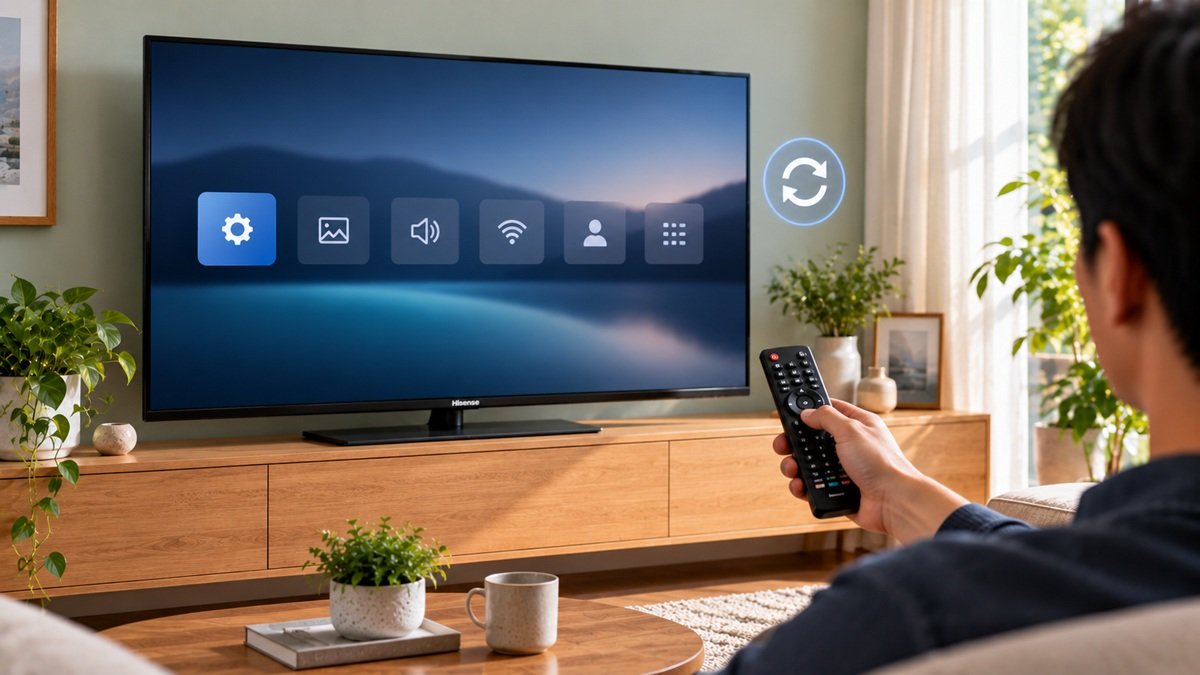
How to Factory Reset a Hisense TV
Last updated: October 2026
🕒 2 min read
Disclosure: This article does not contain affiliate or sponsored links. SignalVetted may still reference specific products or brands for informational purposes only.
If you want to know how to factory reset a Hisense TV, Hisense’s US support FAQ describes two ways: a reset button on the back of the TV and a method that uses the remote. This article uses that answer only.
Table of Contents
How to Factory Reset a Hisense TV With the Reset Button
Hisense says newer Hisense Roku or Android TVs have a small button on the back that resets the TV. Press it with a thin object, such as a toothpick, and hold it for 15 seconds.
How to Factory Reset a Hisense TV With the Remote
- Press and hold the Exit button for 15 seconds, until the Factory Service menu appears. Select OK.
- Turn the TV off for at least 20 seconds, then turn it back on.
- If that doesn’t work, press the menu button and go to Support. Then select Self Diagnosis, and then Reset.
After the Reset
Hisense says you’ll need to re-download any apps after a reset, because a reset starts the TV from a clean slate.
What Hisense’s Page Doesn’t Say
The page shows no date and doesn’t say which models count as “newer.” It doesn’t explain what selecting OK does on the Factory Service menu, or what is erased besides apps.
Frequently Asked Questions
How do I factory reset a Hisense TV without the reset button?
Hisense says to hold the Exit button on the remote for 15 seconds, then power the TV off and on. If that doesn’t work, it says to use Support, Self Diagnosis, then Reset.
Do I have to reinstall apps after resetting a Hisense TV?
Yes. Hisense says you’ll need to re-download any apps after a reset.

Nridi
Editor, SignalVetted
This article does not report independent product testing.
✅ Based on the sources named on this page.