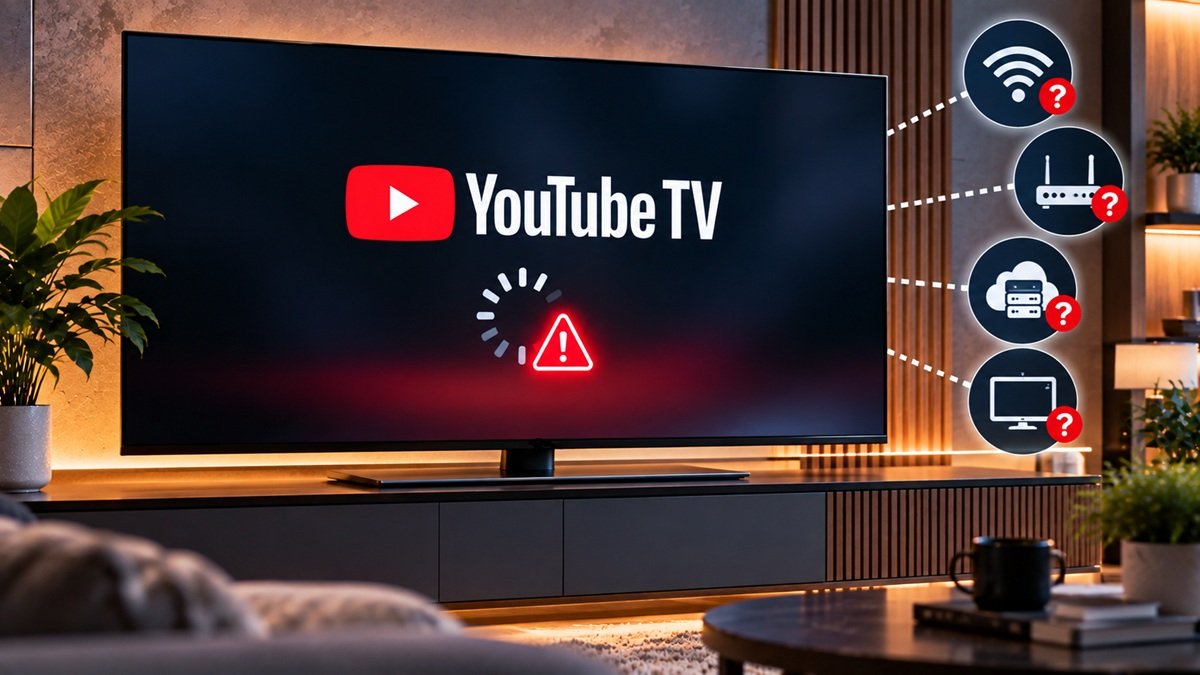
Why Is YouTube TV Not Working? Device Steps to Try
Last updated: October 2026
🕒 5 min read
Disclosure: This article does not contain affiliate or sponsored links. SignalVetted may still reference specific products or brands for informational purposes only.
If you’re asking why is YouTube TV not working on your television, Google’s YouTube TV Help page on supported devices is a sensible first stop, because it pairs a device list with troubleshooting notes for specific hardware. This guide follows that page: which TVs and players it lists, what it says about Roku and Apple TV problems, and what it says about local stations and multiview. We haven’t tested any of it. This guide covers only device-related causes; it does not explain every reason YouTube TV can fail.
Table of Contents
Why Is YouTube TV Not Working? Check Device Support First
Google’s page starts by saying YouTube TV runs on computers, smart TVs, streaming devices and mobile devices, with certain phones and tablets among the mobile ones. For a TV, the part that matters is the list of supported hardware that follows it. If your set or player isn’t on that list, you’ll want to know before changing any settings. For TV sets and players, the page doesn’t describe what an unsupported device does, so we can’t tell you.
Smart TVs on Google’s list
Google names several TV families, each with its own condition. Roku TVs are listed as all models. LG and Samsung smart TVs are listed for 2017 and later models only, so an LG or Samsung set from before 2017 falls outside the listing. Hisense and Vizio SmartCast TVs are listed for select models, and the page doesn’t say which ones.
Fire TV Edition smart TVs made by Toshiba, Insignia, Element and Westinghouse are on the list too.
Streaming devices and game consoles
Among streaming devices, Google lists Android TV, Google TV, Chromecast with Google TV, the 4th-generation and 4K Apple TV, TiVo Stream 4K, Xfinity Flex and Peloton. For Google TV, the page says all Google TVs and streaming media devices are covered. For Android TV it adds a caution: a set running a phone version of Android may not be supported. Not sure what Android TV is? Our guide on what Android TV is covers it.
Fire TV hardware appears in several forms, including the Fire TV Stick (3rd Gen), Fire TV Stick Lite, Fire TV Stick 4K (all versions) and Fire TV Cube. Roku’s entries are long, covering the Ultra, Premiere, Express and Streaming Stick lines and the Roku Smart Soundbar, with some older Roku 2, 3 and 4 boxes listed too. The page lists the Roku Streaming Stick for 3600x and newer models.
Not sure whether you have a Roku TV or a Roku player? Our guide to what Roku is explains the difference.
For consoles, the list names PlayStation 5 and PlayStation 4, plus Xbox Series X, Xbox Series S and the Xbox One family.
Check What Your Device Supports Inside the App
Google says the YouTube TV app has a Device Capabilities screen, reached through Settings, then Support, then Device Capabilities. Google says it shows whether your hardware supports features such as 4K, 5.1 surround sound, the full multiview experience and background playback. Google adds that the feature is in the middle of rolling out, so it may be missing on some devices.
Roku Player Problems: HDCP Errors and Choppy Playback
HDCP error on a Roku player
For an HDCP error on a Roku player, Google says to enable HDMI Ultra HD Color in your TV’s settings. The page gives no explanation of why that setting matters, and we won’t guess.
Choppy playback on a Roku player
For choppy playback on a Roku player, Google suggests turning off HDR in the Display type settings. Its path is Settings, then Display type, then one of three options: 4K 30 Hz TV, 4K 60 Hz TV or 4K HDR 60 Hz. The page lists a 4K HDR 60 Hz option even though the step is about turning HDR off, so it isn’t clear which option removes HDR. The page doesn’t say, and we can’t tell you; if choppy playback continues, use the help links on Google’s page.
Apple TV: Blank Screen, Flicker and Video Delays
Google says the Apple TV app on version 1.13.1 and later might show a blank or flickering screen during channel changes and ad transitions.
To minimize video delays, Google suggests trying SDR as the default video format with Match Dynamic Range left on. The path it gives is Settings, then Video and Audio, then Format, where you pick any SDR option.
Google also says turning off Match Dynamic Range can improve performance: Settings, then Video and Audio, then Match Content, then Match Dynamic Range, then Off. Google links Apple’s own pages on these settings for more detail. Google gives these as two separate options, doesn’t say whether to combine them, and doesn’t say which problem each one addresses.
Missing Local Stations
Google says a device with no built-in GPS needs a mobile device to confirm your location, and local programs depend on that. If you’re using a listed device and local stations still aren’t showing, the page’s steps are to open Settings, then Location, on a mobile device and choose Update playback area. Google links a separate page on location problems for anything beyond that.
Multiview on Older Devices
Google says multiview may look more limited on certain older devices, mostly those made before 2018, with fewer customization choices or lower picture quality. The page doesn’t name the devices, and it describes them only as select older ones, so a device’s age alone doesn’t tell you whether it’s affected.
A Suggested Order for Working Through These
Google’s page doesn’t rank its steps, so this order is ours, not Google’s. Start with the supported-device list. Then match your hardware to one section: an HDCP error or choppy playback on a Roku, a blank screen or flicker on an Apple TV, missing local stations on any device, or a multiview that looks reduced on an older one.
Where Google’s Page Stops
Everything above comes from one Google help page about devices. It doesn’t cover problems that aren’t tied to a device, so this guide doesn’t either. For anything else, the page points to Google’s help community and a contact page.
Frequently Asked Questions
Why is YouTube TV not working on my TV if it isn’t on Google’s list?
Google lists other ways to stream YouTube TV to a TV: Chromecast devices, TVs with Chromecast built in, AirPlay for Apple TV and Google Smart Displays. The page doesn’t promise that any particular unlisted TV will work this way, so check what yours supports.
How long does YouTube TV take to open on a first-generation Chromecast?
Google says a first-generation Chromecast may run into more errors and may take up to 30 seconds to open.
Do devices with limited memory work differently on YouTube TV?
Google says select devices with 512 MB of memory or less may have a slightly different experience, and some features may not be available. The note sits inside the Roku part of the streaming-device list, and the page doesn’t say which devices or features.

Nridi
Editor, SignalVetted
This article does not report independent product testing.
✅ Based on Google’s YouTube TV Help page on supported devices.