
How to Connect a Soundbar to TV: Ports, Cables, Settings
Last updated: October 2026
🕒 7 min read
Disclosure: This article does not contain affiliate or sponsored links. SignalVetted may still reference specific products or brands for informational purposes only.
The question of how to connect a soundbar to TV equipment you already own is mostly about planning, not about the cable itself. Which devices plug into the TV, which into the soundbar, and which port carries the sound all depend on each other. This guide follows RTINGS’ soundbar setup article, which shows “Updated Oct 08, 2025”. We haven’t tested any of it, and we leave out the specific models the article uses as examples.
Table of Contents
How to Connect a Soundbar to TV: Choose the Audio Path First
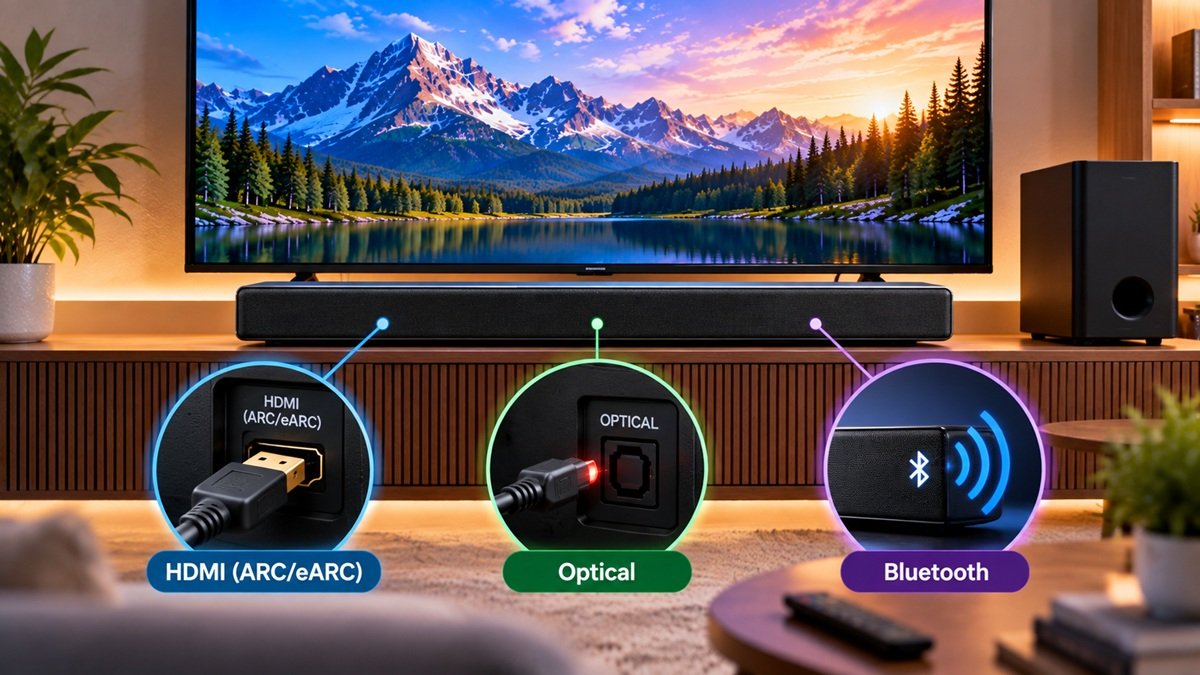
RTINGS mentions two routes for sending TV sound to a soundbar: HDMI ARC/eARC and optical. It says most soundbars support ARC or eARC, and most TVs do too. With either, the TV sends its audio back to the soundbar over the same HDMI connection it already uses for video. At minimum, that lets sound from the TV’s built-in apps come out of the soundbar.
If you’re unsure what separates ARC from eARC, our explainer on what HDMI eARC is covers the difference.
Which TV Port to Use
TVs generally have three or four HDMI inputs, and which one carries ARC or eARC varies from product to product. RTINGS adds that mid-range and higher-end TVs typically have at least one high-bandwidth HDMI port for consoles.
The choice matters once you have several demanding sources. If the ARC/eARC port is a 4K at 60Hz input, video passed through the soundbar can’t exceed that limit. If it’s a 4K at 120Hz (or higher) input, you may have used up one of a potentially limited set of high-bandwidth ports, which RTINGS says can be especially inefficient if the soundbar can’t pass that bandwidth along.
Whichever port it is, a soundbar connected over ARC/eARC occupies one of the TV’s HDMI ports.
What the Soundbar Itself Accepts
Soundbars differ widely in their connections, even at the higher end. RTINGS describes one kind that takes several HDMI sources and receives TV audio over eARC or optical, and another with a single HDMI eARC port, which leaves every source device to plug into the TV.
Not every HDMI input is equal either. The page warns that some don’t pass higher-bandwidth video through, and some lack features such as VRR.
Match the Setup to Your Source Devices
According to RTINGS, the devices you want to connect are probably the biggest limit on your setup, so it helps to answer three questions before plugging anything in.
Count Your Sources
Every TV and soundbar runs out of ports eventually, so tally your source devices first to see how many inputs the whole chain must provide.
Check Resolution and Frame Rate Needs
RTINGS notes that Blu-ray releases top out at 4K at 60Hz, so a disc player doesn’t need a high-bandwidth port. Game consoles and desktop PCs ask for more bandwidth to run smoothly at higher frame rates. As a rule of thumb, the page says, a source that goes beyond 4K at 60Hz is better matched to an HDMI 2.1 input.
Spot Gaming and HDR Features
Some devices, particularly gaming-oriented ones such as consoles, also support features like variable refresh rate (VRR) and auto low latency mode (ALLM), and RTINGS says soundbars typically pass those through less reliably.
The page also points to brand differences in dynamic HDR. It says Samsung TVs typically skip Dolby Vision in favor of HDR10+, although Samsung’s soundbars can pass Dolby Vision through. LG soundbars typically don’t pass HDR10+ through, because they favor Dolby Vision. So with a typical Samsung TV and a typical LG soundbar, HDR10+ video generally can’t pass through the soundbar. RTINGS suggests plugging that source straight into the TV and sending only the audio to the soundbar over HDMI ARC/eARC or optical.
Two Ways to Lay It Out
RTINGS walks through an example with three sources: a desktop PC and a game console that both prefer HDMI 2.1, and a Blu-ray player that is fine with HDMI 2.0.
The TV as the Hub
Here every source plugs into the TV, and the TV sends audio to the soundbar through its eARC port. RTINGS says this suits a soundbar with a single eARC port, since nothing can be routed through the bar. The catch is the TV’s supply of HDMI 2.1 inputs. If two remain once the soundbar is connected, the PC and console each get one. If only one remains, the two devices compete for it.
The Soundbar as the Hub
With a soundbar that has several HDMI inputs, sources plug into the bar, which passes video on to the TV, provided the bar can pass that bandwidth through. Audio from the TV’s own apps returns to the bar through eARC over the same cable. RTINGS suggests this for a wall-mounted TV, where plugging and unplugging in a cramped spot is a nuisance.
The slowest connection in the chain sets the ceiling. If the TV’s ARC/eARC port is an HDMI 2.0 port capped at 4K at 60Hz, everything passing through it is capped there too, even when the soundbar supports more. A TV that puts ARC/eARC on a higher-bandwidth HDMI 2.1 port avoids that.
Cables: What to Look For
RTINGS treats cables as a simple part of the setup. For older gear, it says optical cables don’t differ in performance, so the price mostly reflects build quality. For HDMI, it points out that the HDMI Licensing Administrator checks whether cables meet the specification, and it suggests looking for cables certified as “Ultra High Speed” for HDMI 2.1 bandwidth or “Premium High Speed” for HDMI 2.0. Our explainer on what HDMI 2.1 is goes through what those cable labels mean.
If visible cables bother you, the page mentions cable covers, or routing cables behind the wall, which it calls a bit more invasive. It also notes that some soundbars can stream audio wirelessly with certain TVs from the same brand.
Settings to Check After You Connect
On the TV, RTINGS says to turn on audio passthrough when you use ARC or eARC, so the TV hands audio from its apps and connected devices to the soundbar untouched. The setting’s name and location depend on the TV’s make, model and even year. RTINGS suggests searching the menus for terms such as “Audio Passthrough”, “HDMI ARC”, “HDMI eARC” and sometimes “Digital Audio Output”. On some TVs you also need to change the audio output device so it points to the soundbar.
RTINGS describes room correction as a feature of some soundbars: it uses microphones in the bar or in a phone to adjust the sound to your space. Whether to leave it on is a matter of taste, since RTINGS says you may prefer the sound without it.
Finally, RTINGS recommends testing with material you know well, then trying the equalizer presets or tuning the individual levels to taste.
Placement: Decide This Before You Plug In
Although this section comes last, RTINGS recommends settling where everything goes before connecting anything. A size-to-distance calculator can help you place the couch, and the page cautions against mounting or standing the TV too high.
For the soundbar itself, start with the manufacturer’s placement instructions where they exist. A bar too large to fit under the TV limits your options. A standalone bar can go on the stand or under the TV, so long as nothing blocks its drivers, up-firing ones included. With satellites, the usual advice is to put them at the sides of, or behind, where you sit, and the number in the box decides which. As a general rule, RTINGS suggests trying to keep the bar and satellites symmetrical, with the listening position centered. Power cable length and how the satellites are wired can also narrow the options.
What This Guide Doesn’t Cover
This page sticks to what RTINGS’ article says about connecting and arranging the equipment, and it leaves out model-by-model menus. RTINGS itself says the guide can’t cover every setup imaginable.
Frequently Asked Questions
How to connect a soundbar to TV if the soundbar has only one HDMI port?
RTINGS describes this case: a soundbar with a single HDMI eARC port can’t take source devices, so those plug into the TV, and the TV sends audio to the soundbar through that port.
Do I need HDMI to send TV sound to a soundbar?
Not necessarily. RTINGS lists HDMI ARC/eARC and optical as ways to send audio from the TV to a soundbar, and says most soundbars support ARC/eARC.
Does a soundbar take up an HDMI port on my TV?
According to RTINGS, yes, when you connect it over ARC/eARC, the soundbar uses one of the TV’s HDMI ports.

Nridi
Editor, SignalVetted
This article does not report independent product testing.
✅ Based on RTINGS’ soundbar setup article (page shows “Updated Oct 08, 2025”).